AD Minimization Part IV: User Writeback - Provisioning Cloud-Native Users to On-Premises Active Directory
This is Part IV of the Active Directory Minimization series.
In Part I I converted Exchange mailbox attributes to cloud management, in Part II I moved Group Source of Authority to Entra ID, and in Part III I closed the loop for Exchange attributes with writeback to on-premises Active Directory. Today, we take on the next natural step: User Writeback.
With Entra Cloud Sync’s Microsoft Entra ID to AD sync configuration, you can now provision users that were created in the cloud or where User Source of Authority has been moved to Entra ID, down to your on-premises Active Directory. That means you can make Entra ID the place where users are born and managed for existing users, and still keep the on-premises applications that depend on Active Directory working.
The Scenario: Users Still Need Access to On-Premises Systems and Need an Account in the On-Premises Active Directory
The previous articles have been around Exchange and moving the SOA for Exchange object attributes to Exchange Online. Microsoft just started rolling out user writeback to all tenants, and this article is about setting up the user writeback functionality and seeing a cloud user being provisioned in Active Directory.
This article will be about writeback of Cloud Only users to Active Directory.
Why do you need this
Make Entra ID the source of truth for new users
- Create users once in Entra ID and let Cloud Sync handle the provisioning of the on-premises user.
Make Entra ID the source of truth for existing users
- Users SOA are shifted to Entra ID and Cloud Sync handle the updates from Entra ID to the user object in the on-premises Active Directory.
Keep dependent systems working
- Cloud-created users get a real AD account with a SID, so access to on-premises Kerberos resources still works when a passwordless method such as Windows Hello for Business with Cloud Kerberos Trust or FIDO2 keys is configured.
One step further toward AD minimization
- Combined with User SOA, Group SOA and Group Writeback, the synchronization gets switched from going from Active Directory to Entra ID to going from Entra ID to Active Directory (so kind of flipping the synchronization around from what we’re used to today). Entra ID becomes the source of authority.
- The end goal is to be less dependent on Active Directory and be able to close Active Directory when the last dependent application on-premises is retired.
Prerequisites: Getting Ready
Before you start, you’ll need:
- Microsoft Entra ID P1 licensing
- Hybrid Identity Administrator role (required for configuring Entra Cloud Sync)
- Entra Cloud Sync Provisioning Agent installed on a member server in your Active Directory domain (I installed mine in Part III, so it’s already in place)
- Provisioning agent build 1.1.2334.0 or later
- A security group in Entra ID that contains the cloud-native users you want provisioned to AD - this is your scoping filter
Note: Provisioning users from Microsoft Entra ID to Active Directory is currently in preview. Provisioning groups is generally available.
Preparing a Test Group
For this walkthrough, I created a test security group named sg_writeback_test in Entra ID and added a single cloud-native user, Peter Svendsen, to it. Only members of this group will be written back to Active Directory.
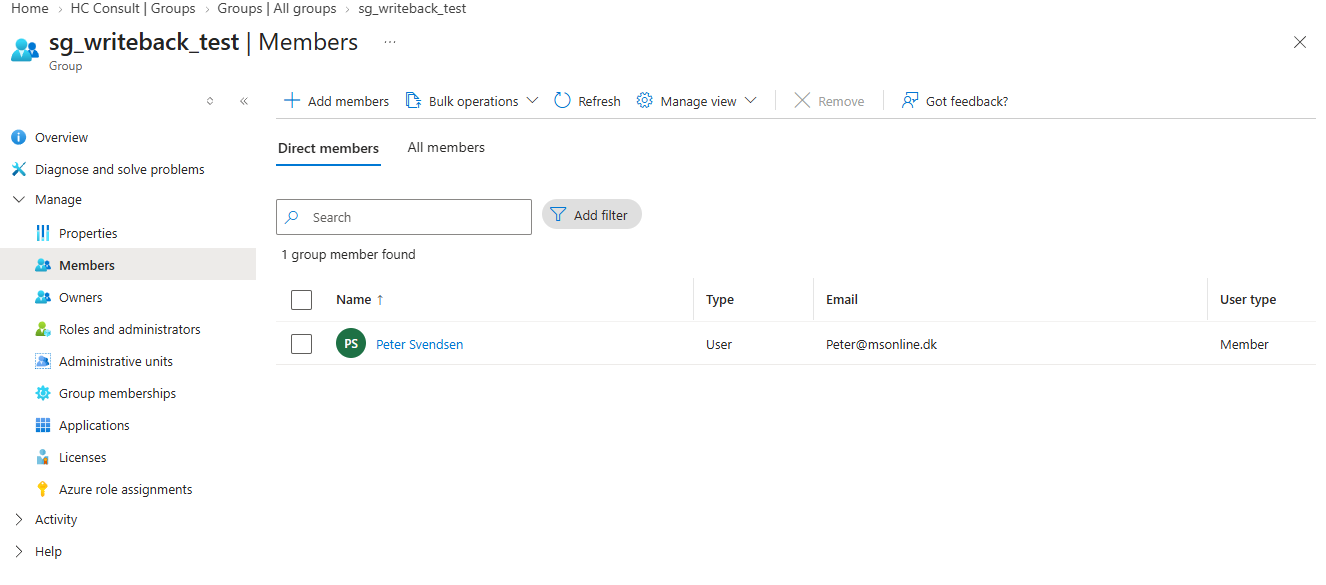
You can see that the user object isn’t on-premises synced. 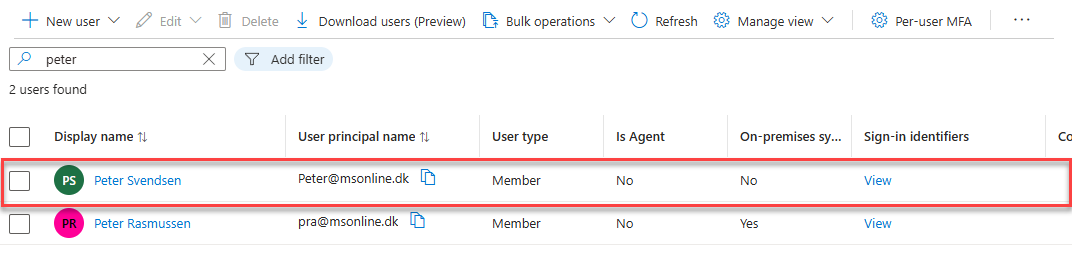 The scoping group and its single cloud-native member
Configuring User Writeback: Step by Step
Navigate to the Microsoft Entra Admin Center. Go to Identity > Hybrid management > Entra Connect > Cloud Sync > Configurations.
Click New configuration and select Microsoft Entra ID to AD sync.
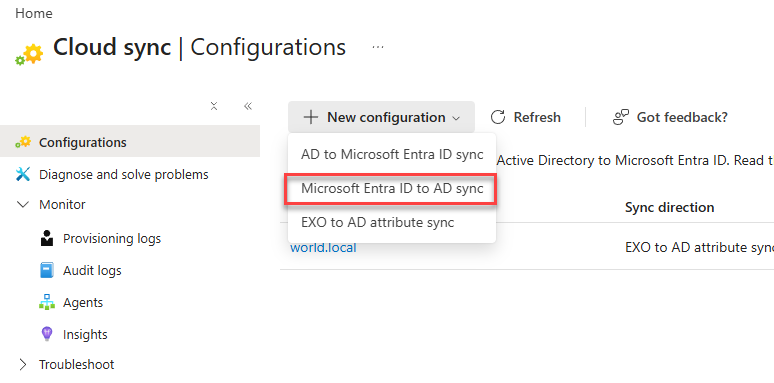 The three configuration types: AD to Entra ID, Entra ID to AD, and the EXO to AD attribute sync we used in Part III
Select Scoping filters and click Edit.
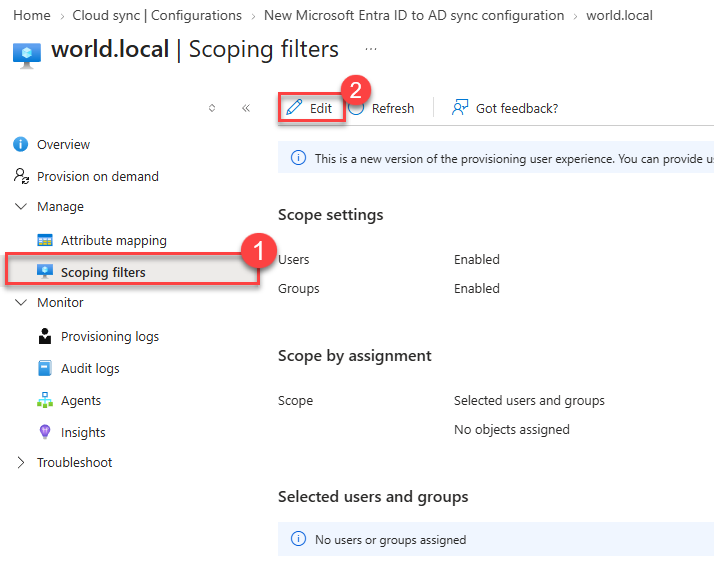
Select User and select Enabled and click Next
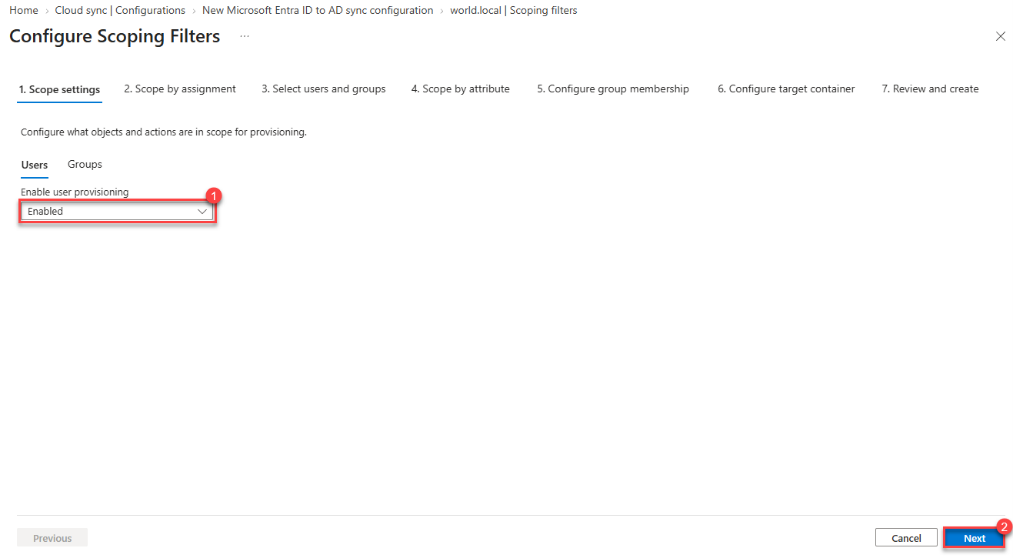 Enabling user objects for this configuration
Keep the defaults on the next page and select Next.
Add the group that should be in target for on-premises writeback - in my case sg_writeback_test - and select Next.
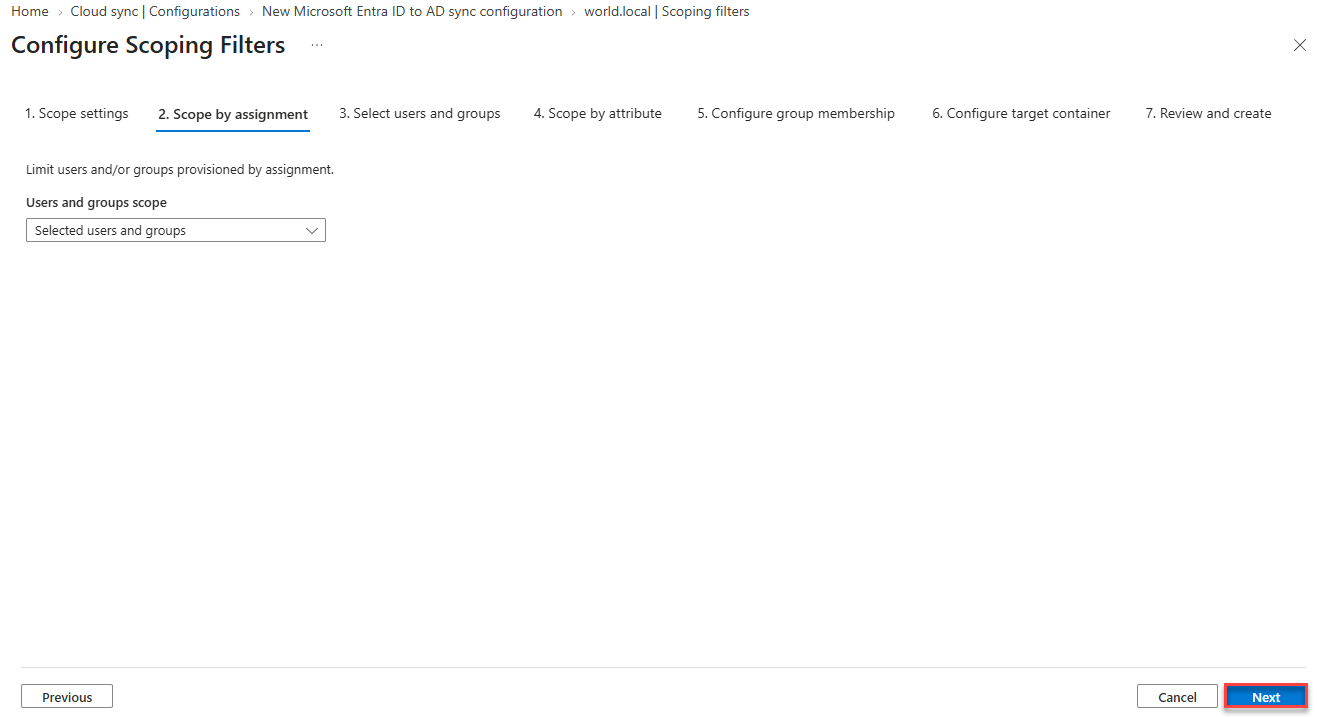
Keep the default and select Next 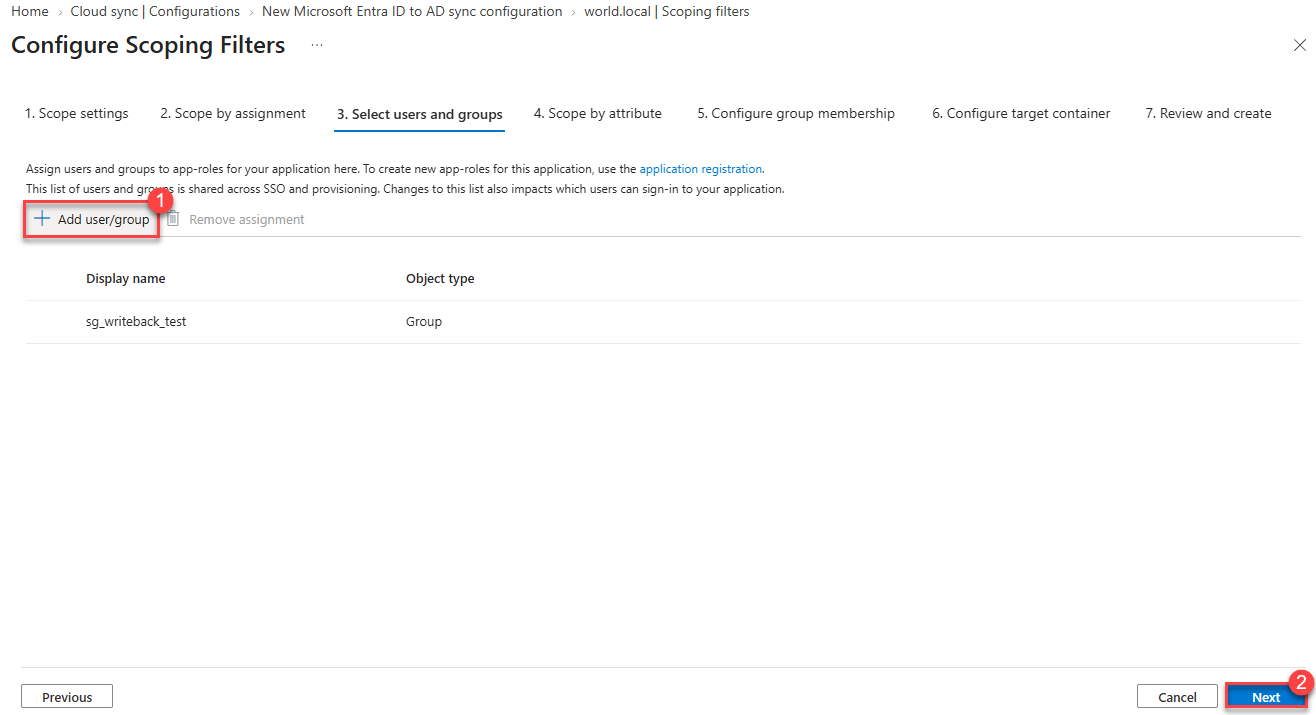 Only members of this group will be provisioned to Active Directory
Select Next
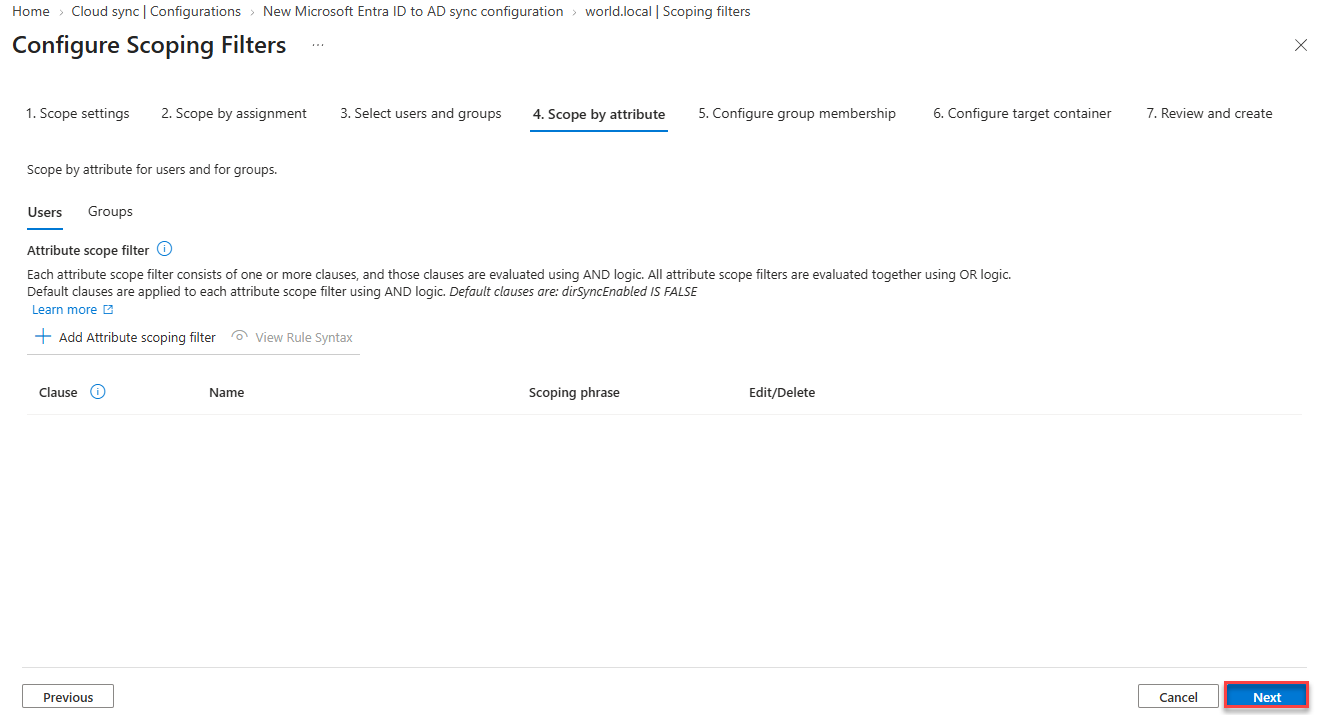
Select Next
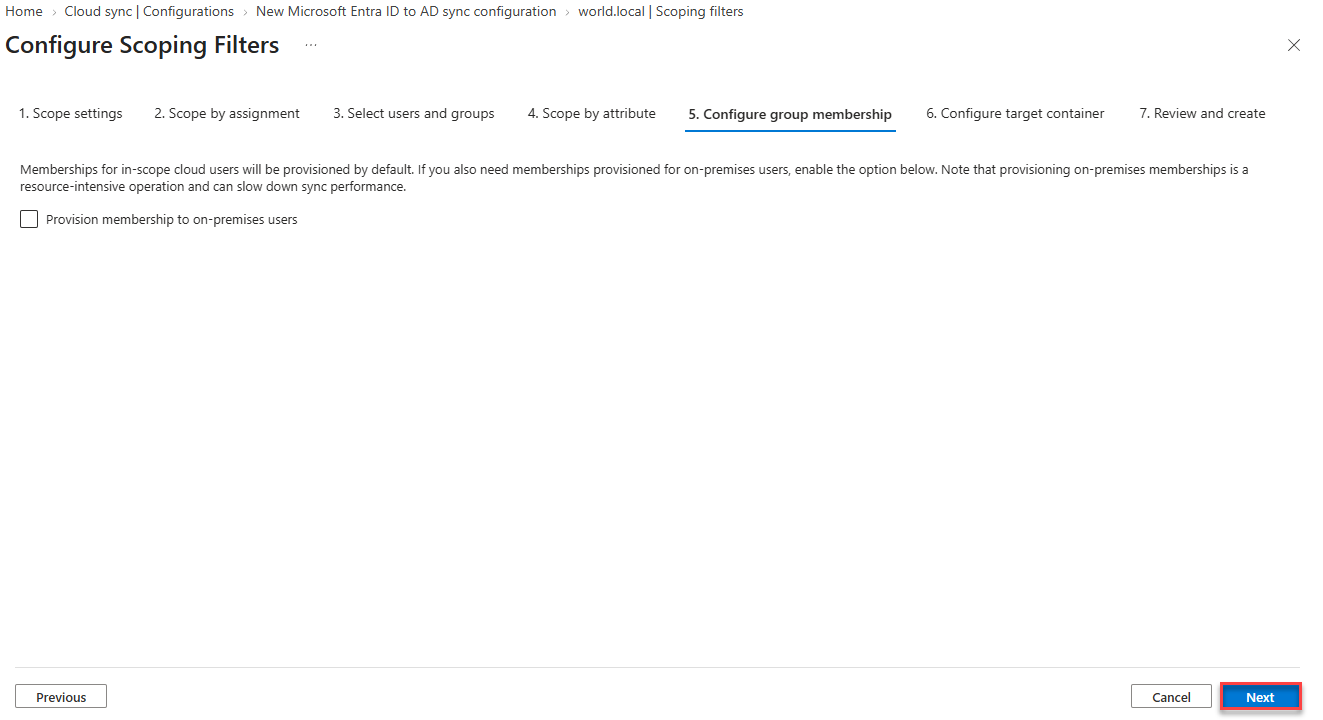
Select Edit attribute mapping to review the default mappings, then select Apply, Next, and finally Save.
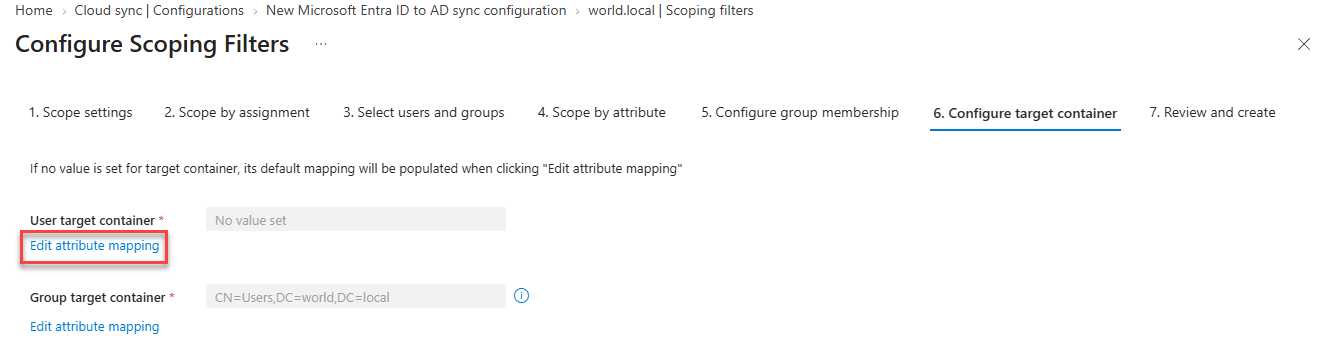
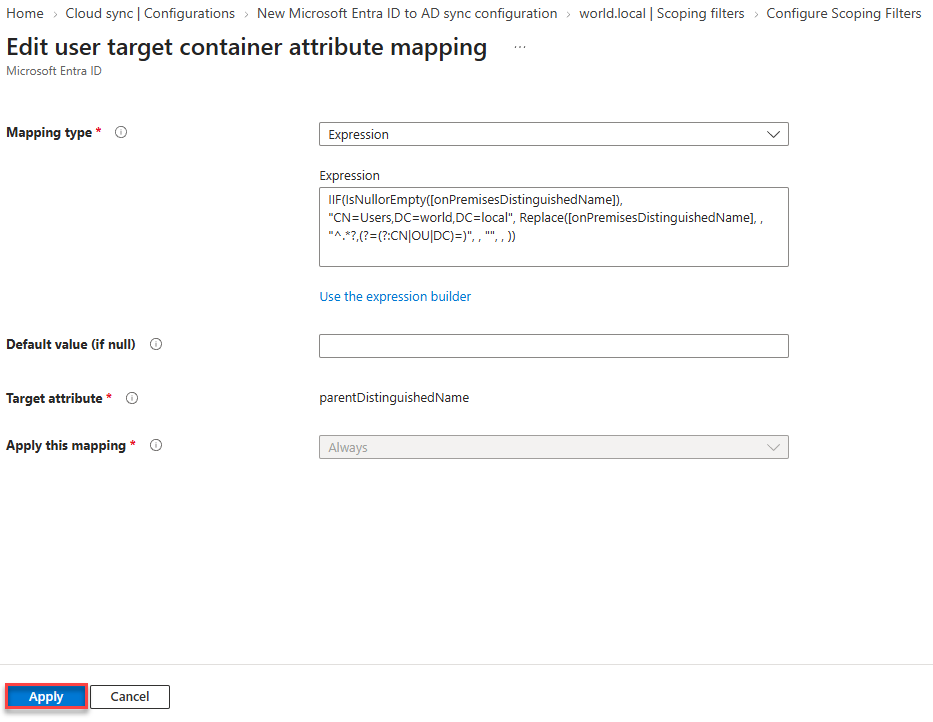
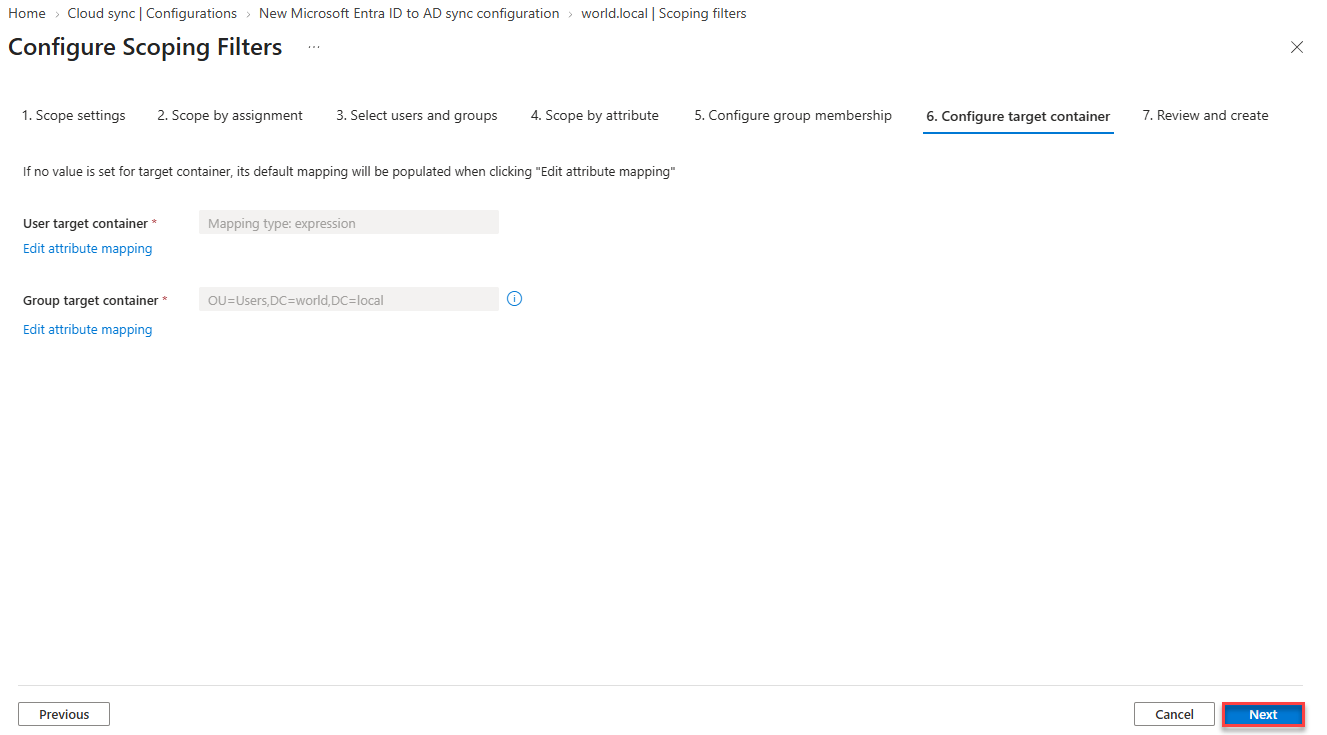
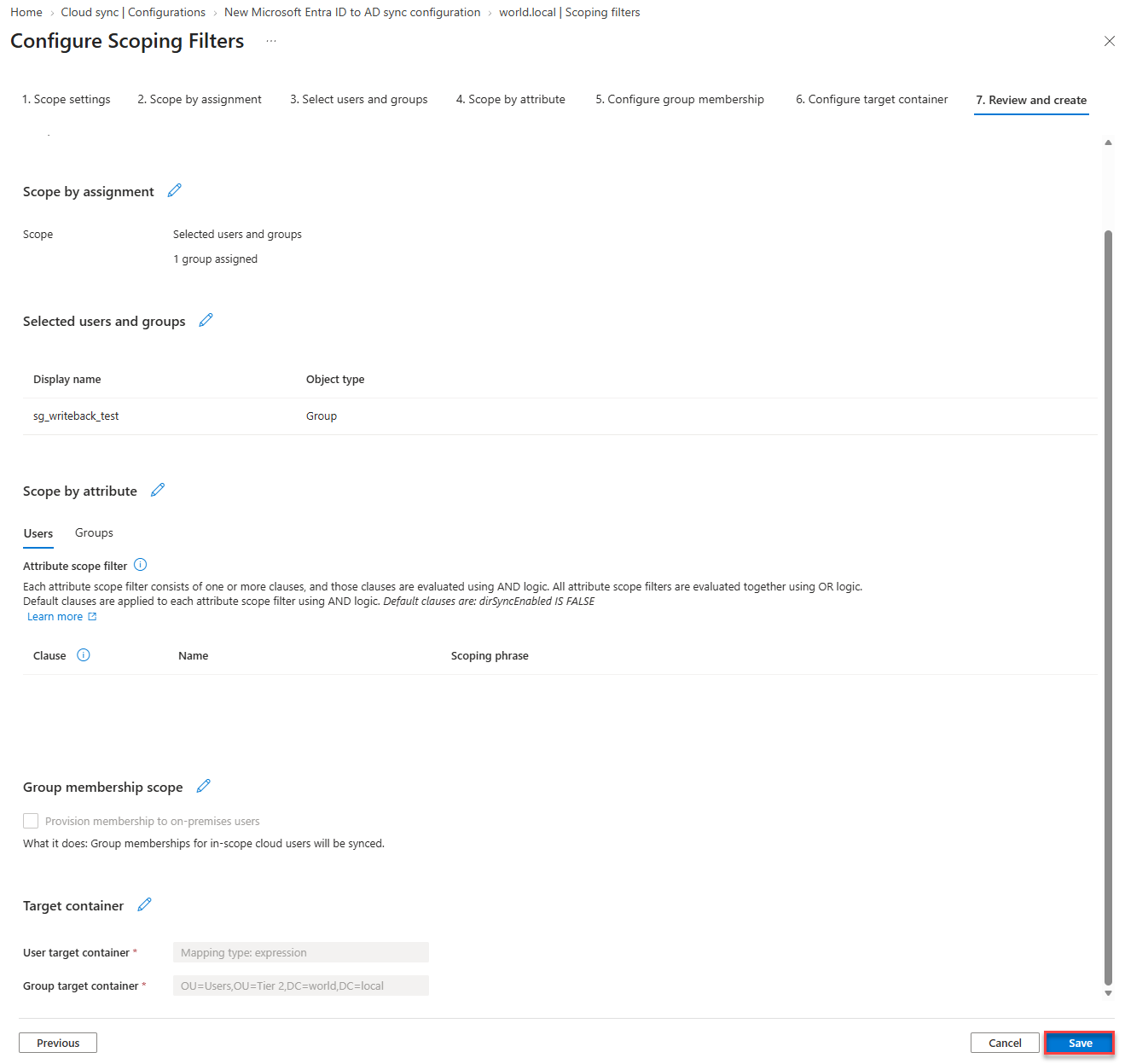
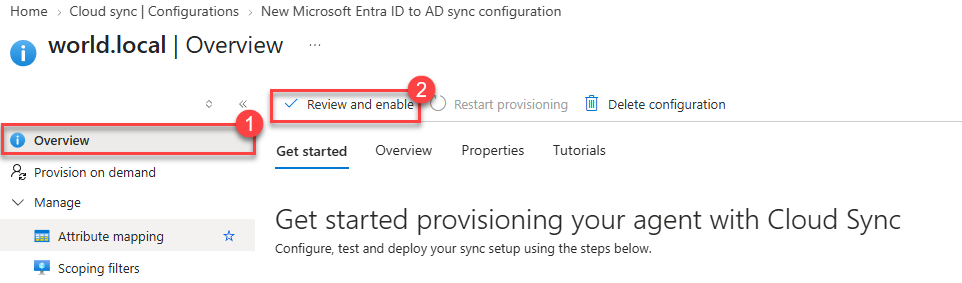
Review and Enable
Go to the Overview pane and select Review and enable.
Look through the configuration and select Enable configuration.
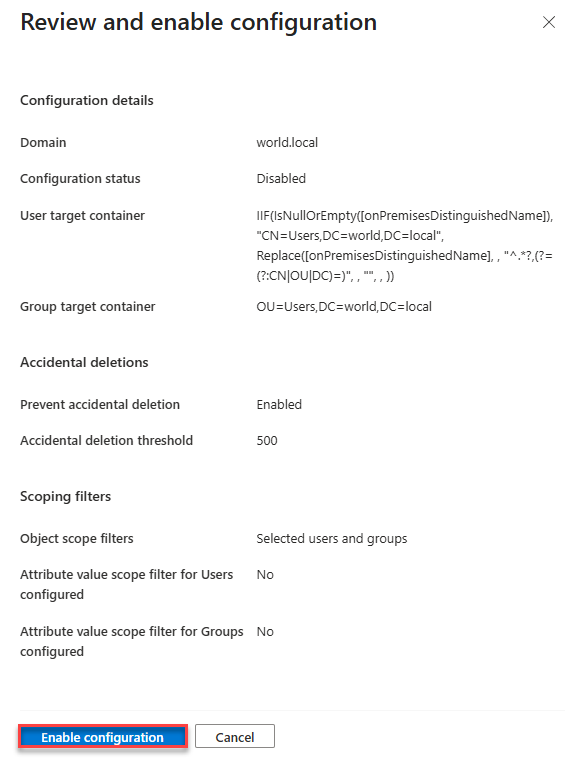 The configuration is now active
Testing: Provision on Demand
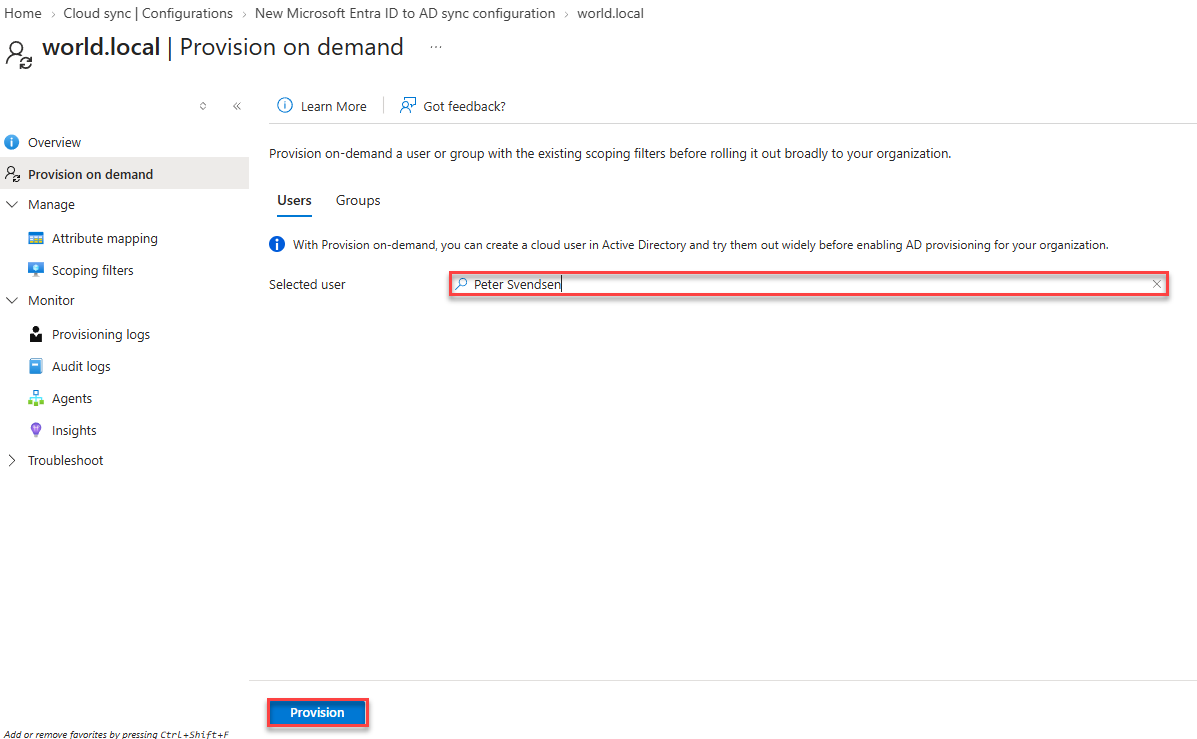
Instead of waiting for the scheduled cycle, I validated the configuration using Provision on demand. Go to Provision on demand, pick a user from the test group (Peter Svendsen) and select Provision.
The result shows every attribute that was written to the new on-premises user object - and confirms that the user was created in Active Directory.
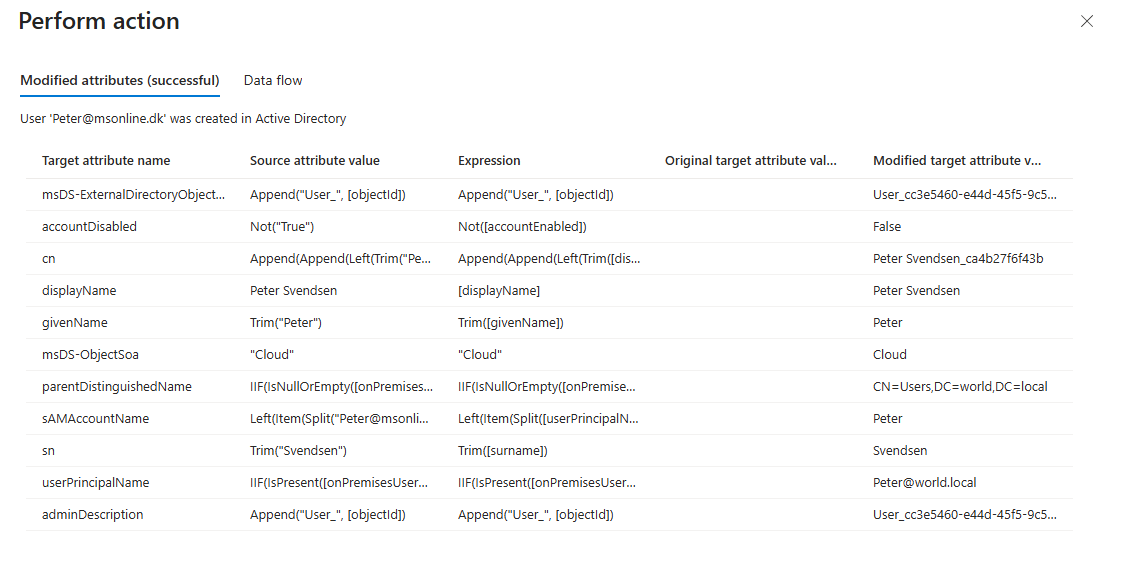 User ‘Peter@msonline.dk’ was created in Active Directory. Note
 msDS-ObjectSoa = Cloud and msDS-ExternalDirectoryObjectId linking the AD object back to Entra ID
What the User Looks Like in Active Directory
In the local Active Directory, the user shows up in the Users container:
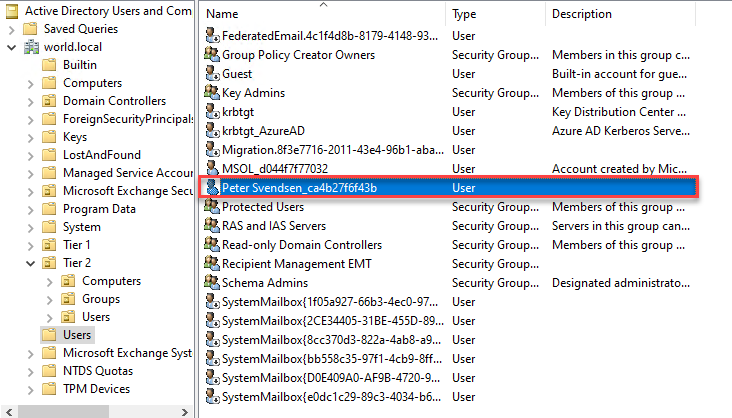 Peter Svendsen_ca4b27f6f43b created in the Users container
The account looks like this in the local AD:
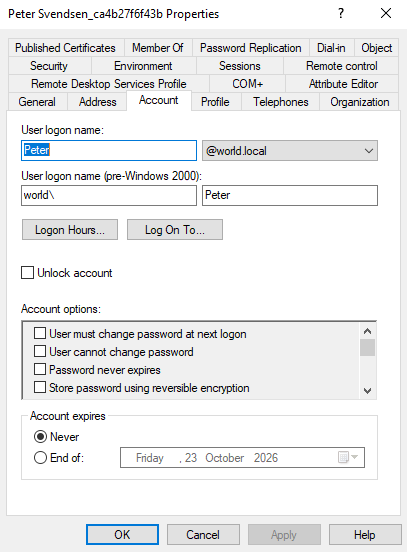
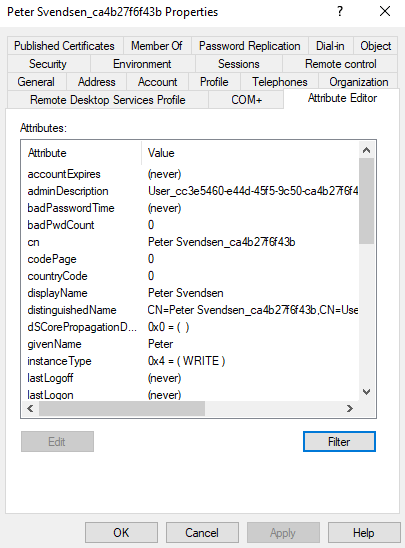
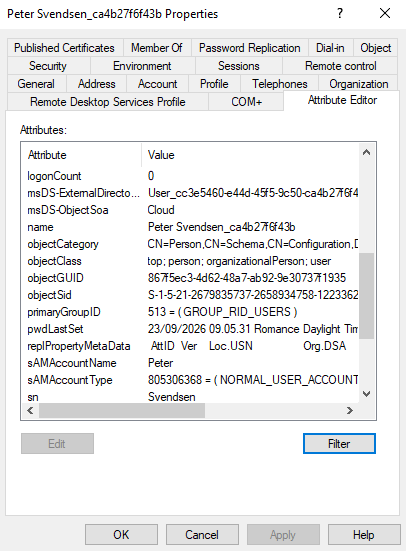
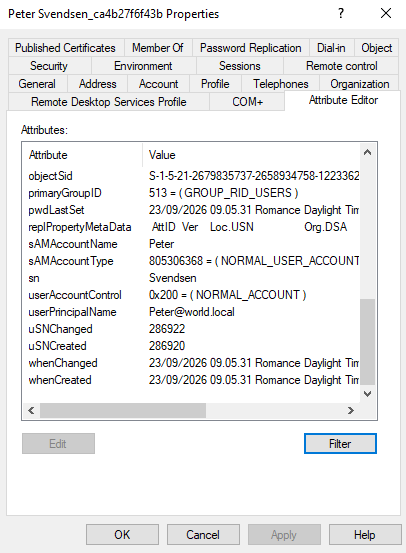 A fully populated AD account, including
 objectSid, sAMAccountName, sn, and userPrincipalName
Back in Entra ID: The On-Premises Security Identifier
And in the Entra admin center, the cloud user now has an On-premises security identifier - the SID of the AD account Cloud Sync just created.
 Peter Svendsen now has an on-premises SID, while still showing “On-premises sync enabled: No”
The UPN Isn’t Written Back Correctly by Default
If you looked closely at the Account tab in Active Directory earlier, you may have noticed that the user logon name ended up as peter@world.local, but it should have been Peter@msonline.dk to match the UPN in Entra ID.
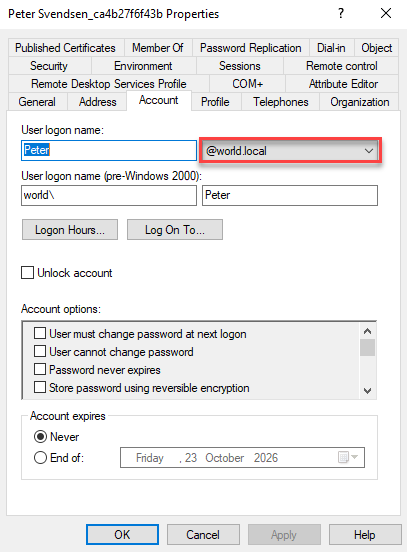 The UPN suffix defaulted to the AD domain FQDN instead of the Entra ID UPN suffix
The reason is the default expression on the userPrincipalName mapping:
1
IIF(IsPresent([onPremisesUserPrincipalName]), [onPremisesUserPrincipalName], Append(Item(Split([userPrincipalName], "@"), 1), Append("@", %DomainFQDN%)))
Fortunately this is easy to change in the attribute mapping.
The fix for the UPN Mapping
Go to Attribute mapping in the configuration, find the userPrincipalName row and select the edit (pencil) button.
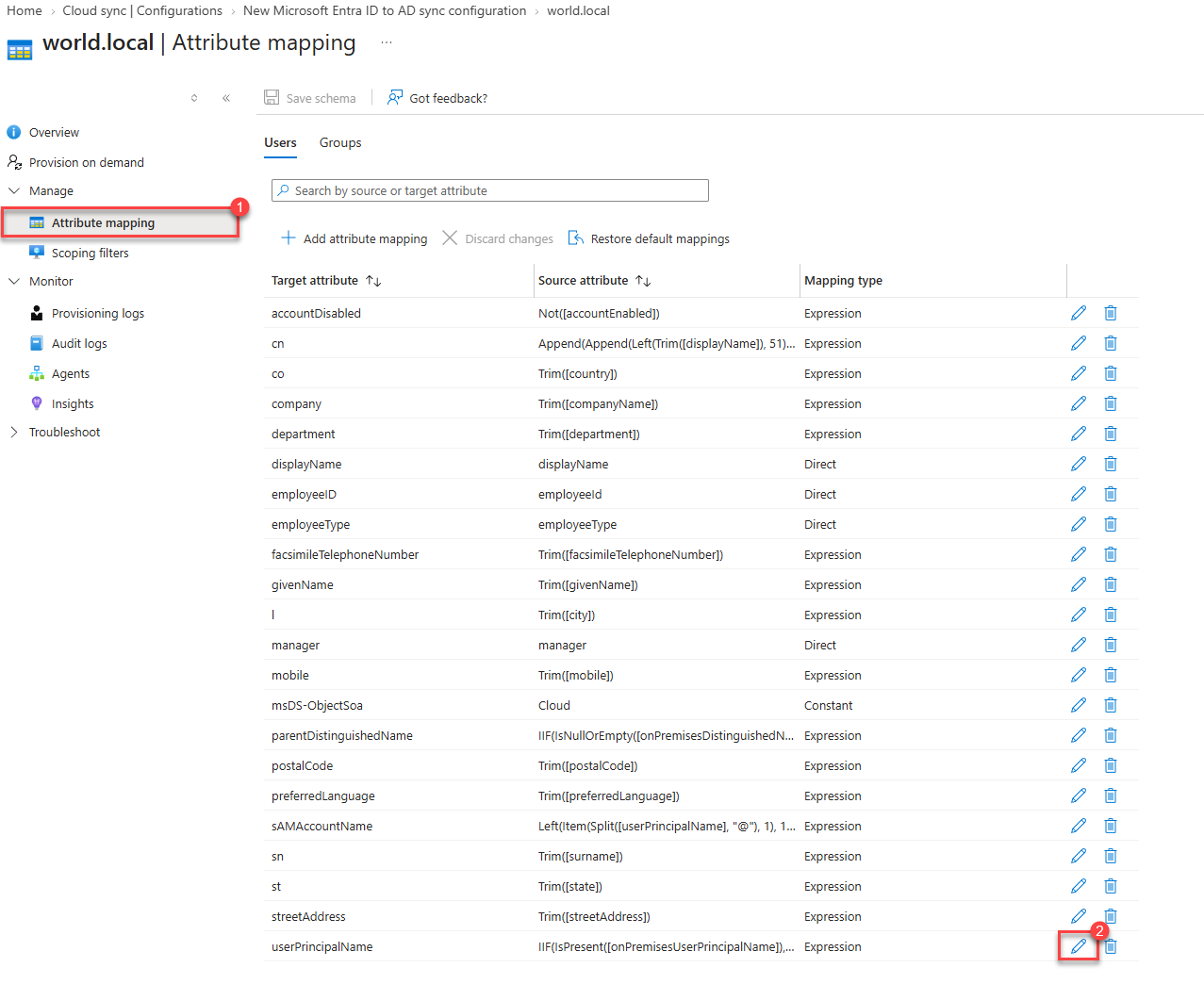
Here you’ll see the default expression, applied Only during object creation.
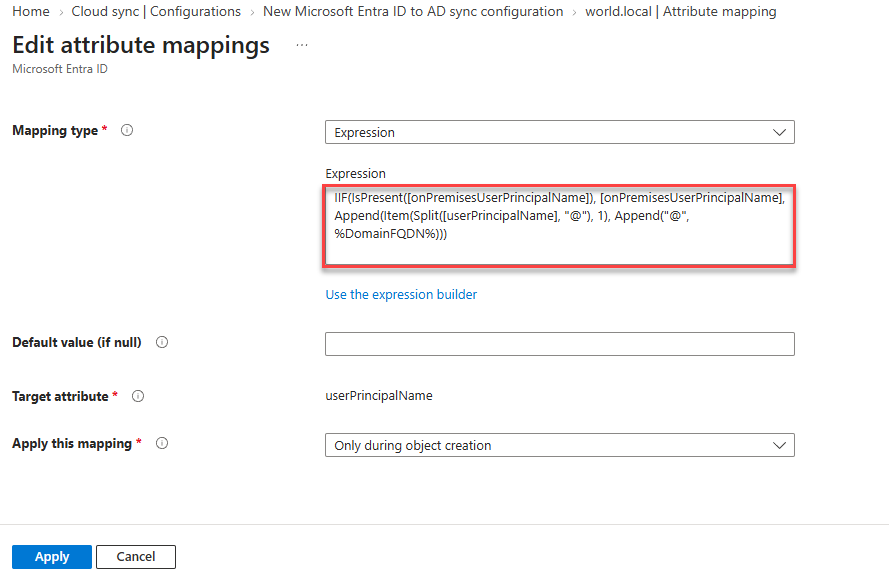
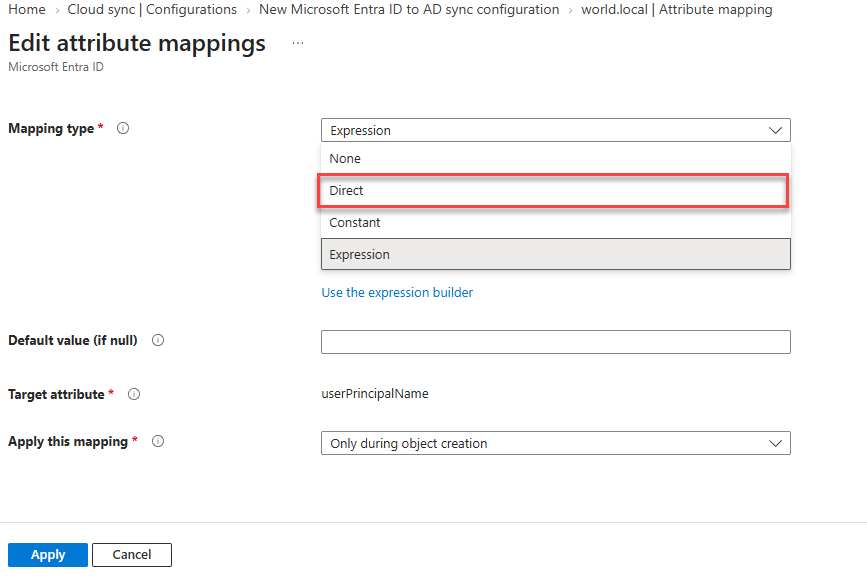
Change the Mapping type to Direct.
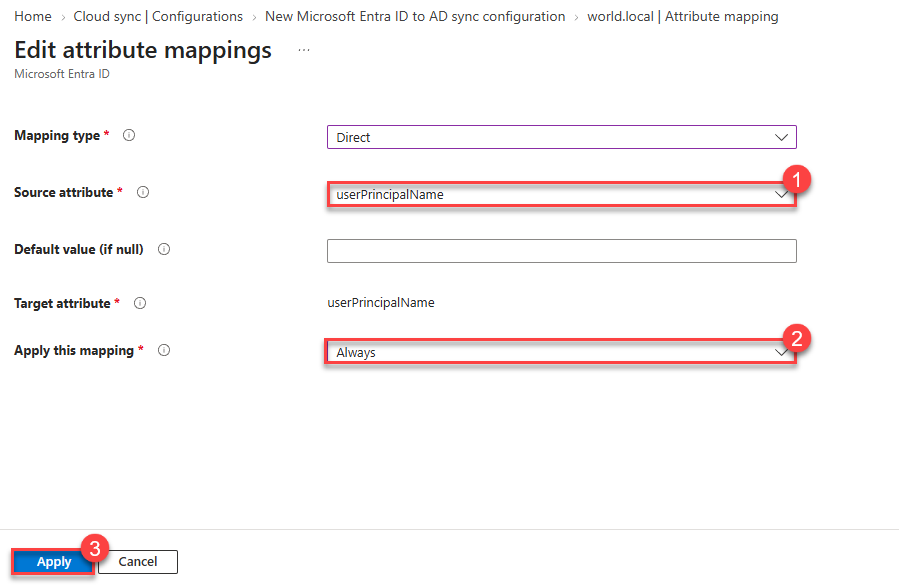
Set Source attribute to userPrincipalName, set Apply this mapping to Always, and select Apply.
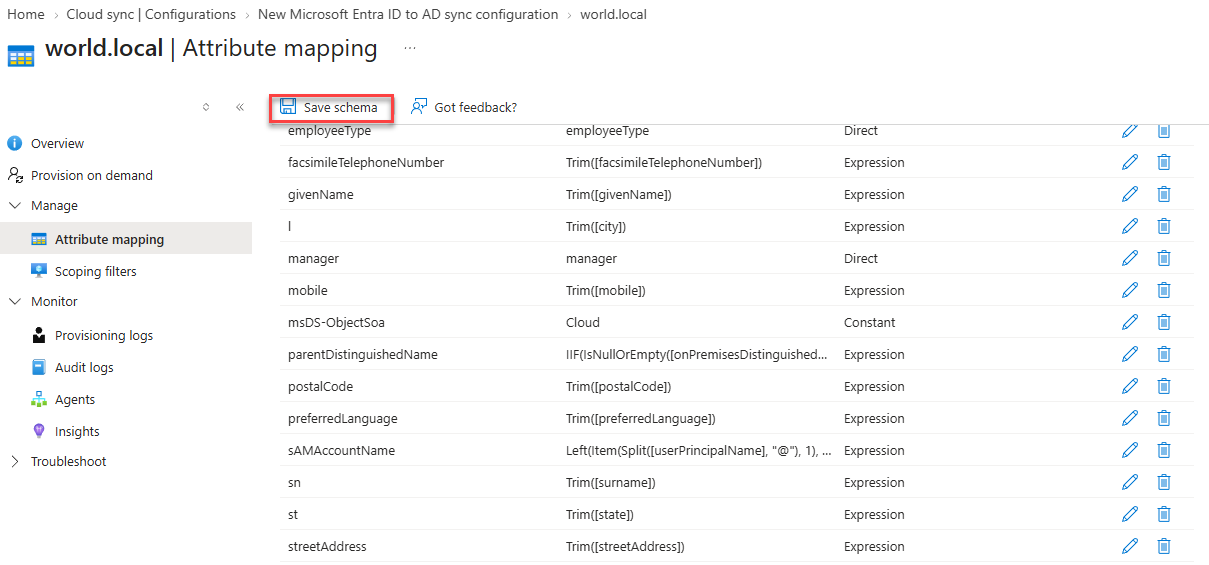
Select Save schema.
Select OK to update attribute mapping 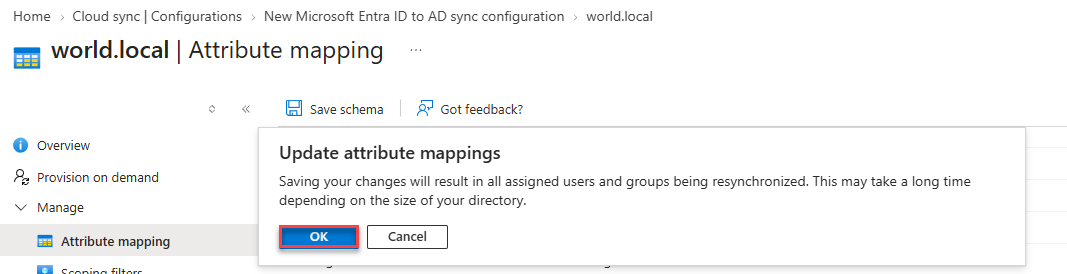
Note: For this to work,
msonline.dkmust be a registered UPN suffix in your Active Directory forest. If it isn’t, add it in Active Directory Domains and Trusts first.
Provision Again and Verify
Run Provision on demand for the same user once more.
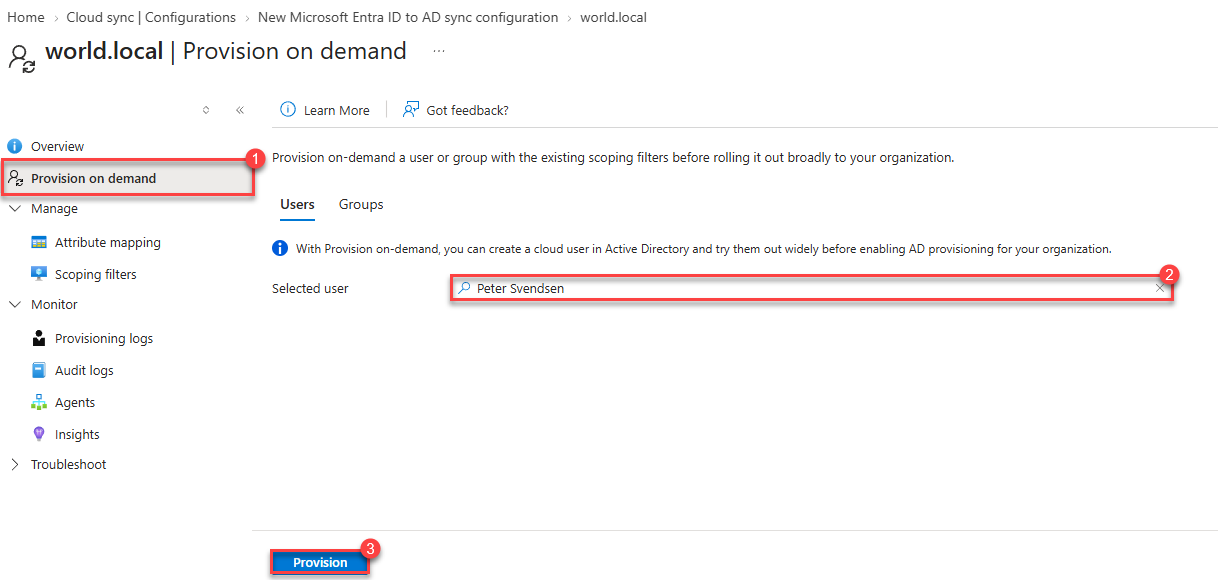
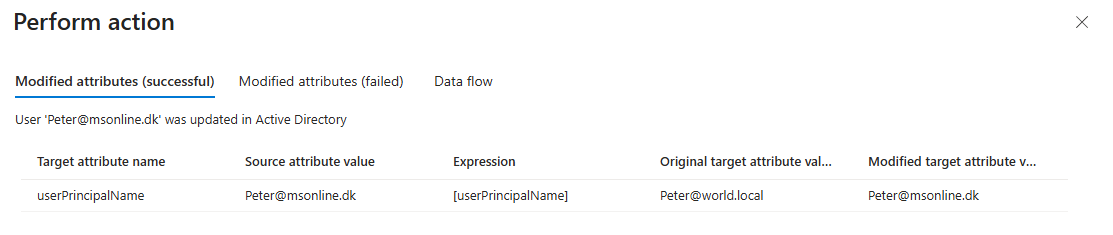
This time the userPrincipalName is written back correctly.
And in Active Directory the account now shows the correct UPN suffix:
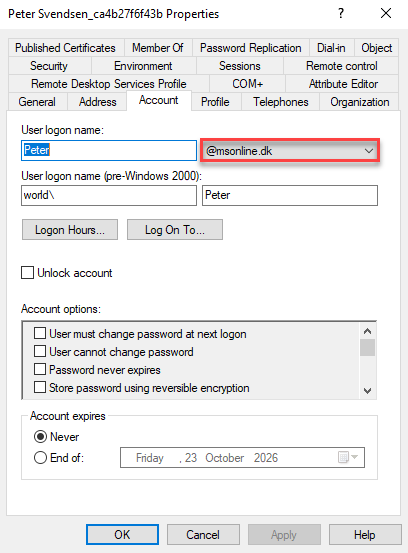 User logon name is now Peter@msonline.dk - matching Entra ID
The Attributes Being Written Back
For reference, this is the full default attribute mapping for Microsoft Entra ID to AD sync users (with my userPrincipalName change applied):
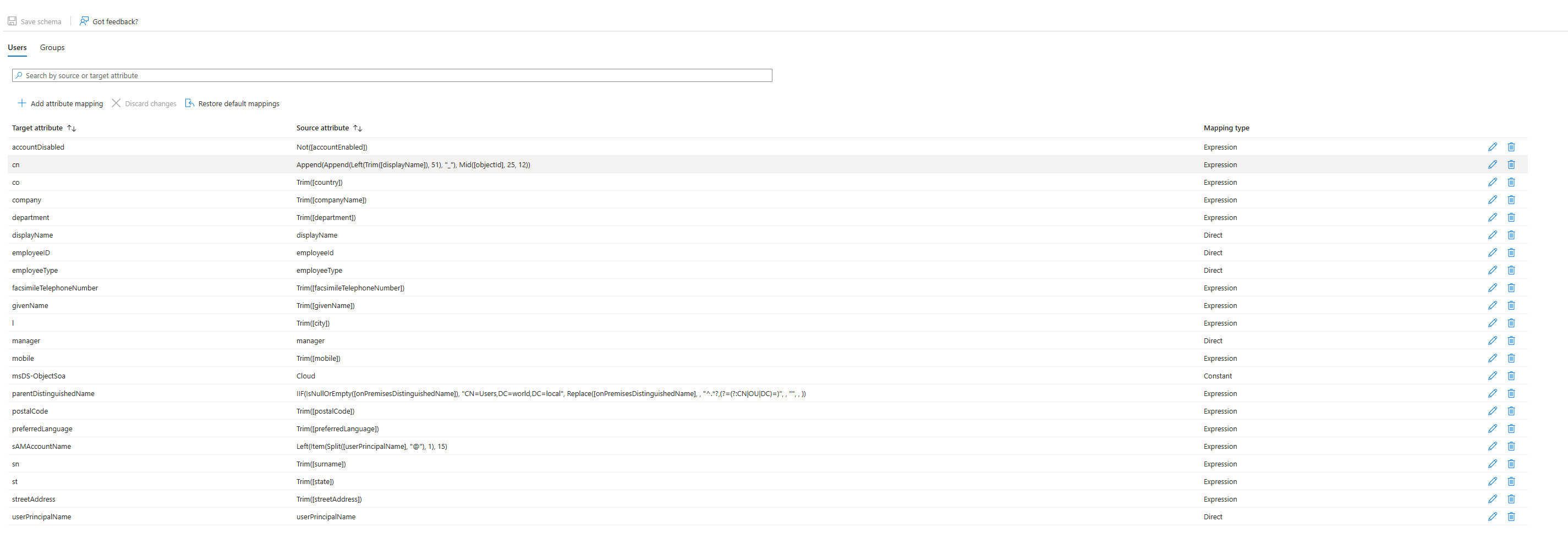 Default user attribute mappings from Entra ID to Active Directory
| Target attribute (AD) | Source (Entra ID) | Mapping type |
|---|---|---|
| accountDisabled | Not([accountEnabled]) | Expression |
| cn | Append(Append(Left(Trim([displayName]), 51), "_"), Mid([objectId], 25, 12)) | Expression |
| co | Trim([country]) | Expression |
| company | Trim([companyName]) | Expression |
| department | Trim([department]) | Expression |
| displayName | displayName | Direct |
| employeeID | employeeId | Direct |
| employeeType | employeeType | Direct |
| facsimileTelephoneNumber | Trim([facsimileTelephoneNumber]) | Expression |
| givenName | Trim([givenName]) | Expression |
| l | Trim([city]) | Expression |
| manager | manager | Direct |
| mobile | Trim([mobile]) | Expression |
| msDS-ObjectSoa | Cloud | Constant |
| parentDistinguishedName | IIF(IsNullOrEmpty([onPremisesDistinguishedName]), "CN=Users,DC=world,DC=local", ...) | Expression |
| postalCode | Trim([postalCode]) | Expression |
| preferredLanguage | Trim([preferredLanguage]) | Expression |
| sAMAccountName | Left(Item(Split([userPrincipalName], "@"), 1), 15) | Expression |
| sn | Trim([surname]) | Expression |
| st | Trim([state]) | Expression |
| streetAddress | Trim([streetAddress]) | Expression |
| userPrincipalName | userPrincipalName | Direct (changed from Expression) |
Notes:
- Passwords are not written back. Cloud Sync does not synchronize password hashes from Entra ID to Active Directory today. A user provisioned this way has an AD account, but no usable AD password until one is set on-premises or through another mechanism. Microsoft has indicated this is coming later, so keep an eye on the roadmap.
- Accessing on-premises Kerberos resources: for cloud-managed users without an AD password, this requires a configured passwordless method such as Windows Hello for Business with Cloud Kerberos Trust or FIDO2 keys.
What do you get from this?
By enabling User Writeback, you’ve:
- Made Entra ID the SOA of users: Create the user once, in the cloud, and let Cloud Sync do the rest
- Kept on-premises access working: Cloud-native users get a real AD account with a SID for access to on-premises Kerberos resources when a passwordless method such as Windows Hello for Business with Cloud Kerberos Trust or FIDO2 keys is configured
- Kept UPNs consistent: With the direct mapping, the AD UPN mirrors Entra ID, so users see one logon name everywhere
- Turned AD into a downstream directory: Together with Group Writeback, on-premises Active Directory is no longer the master, it’s a target
What’s Next?
The Active Directory Minimization series so far:
- Part I: Exchange SOA Conversion - Move Exchange attribute management to the cloud
- Part II: Group SOA Conversion - Move group management to Entra ID
- Part III: Exchange Writeback - Write Exchange Online attribute changes back to on-premises AD
- Part IV: User Writeback - Provision cloud-native users to on-premises AD
Stay tuned for more in the series!
Let’s Connect
I’m always looking to connect with others who are working on AD Minimization and related challenges. Whether you’re just starting your cloud journey or deep into decommissioning on-prem infrastructure, I’d love to exchange ideas and experiences.
If you’re working on Active Directory minimization, cloud-first identity, or hybrid transitions, let’s talk. I learn just as much from hearing about your environment as you might from this post.
You can find me on Twitter/X and LinkedIn.
Reference
- Microsoft: Prerequisites for Microsoft Entra Cloud Sync
- Microsoft: Tutorial - Govern access to an on-premises app with users and groups provisioning (Preview)
- Microsoft: What is Entra Cloud Sync?
- AD Minimization Part I: Exchange SOA Conversion
- AD Minimization Part II: Group SOA Conversion
- AD Minimization Part III: Exchange Writeback
This is part of an ongoing series about Active Directory Minimization. I’ll be creating more tools and blog posts about this subject.