AD Minimization Part III: Exchange Writeback - Exchange Online Changes Writeback to On-Premises Active Directory/Exchange
This is Part III of the Active Directory Minimization series.
In Part I I showed how to convert Exchange mailbox attributes to cloud management using the Exchange SOA Conversion Tool. In Part II I covered Group Source of Authority conversion. Today, we’re taking the next step which Microsoft just announced for public preview on the 15th of May 2026: Writeback.
Microsoft recently announced Writeback for Cloud-Managed Remote Mailboxes (Public Preview). This feature closes the loop — changes you make to Exchange attributes in Exchange Online are now automatically written back to your on-premises Active Directory. This is a critical piece for organizations that still have on-premises systems depending on Active Directory attributes, but want to manage Exchange from the cloud.
The Scenario: You Manage in the Cloud, But On-Premises Still Needs to Know
After converting mailboxes to cloud management (Part I), you can change email addresses, aliases, and other Exchange attributes directly in Exchange Online. But until now, those changes didn’t flow back to on-premises Active Directory. If any on-premises application, system, or workflow reads Exchange attributes from AD, it would be out of sync.
Writeback solves this. It uses a new Entra Cloud Sync configuration type — EXO to AD attribute sync (Preview) to writeback Exchange Online attribute changes back to on-premises AD automatically.
Why This Matters
Complete the cloud management loop
- Changes made in Exchange Online are reflected in on-premises AD without manual intervention
- Email aliases, proxy addresses, and other Exchange attributes stay in sync
Reduce on-premises administration
- No more manually updating Active Directory attributes after making changes in Exchange Online
- One step further toward retiring your on-premises Exchange server
Keep dependent systems current
- On-premises applications that read mail attributes from Active Directory see up-to-date values from Exchange Online
- Coexistence scenarios work more cleanly
Prerequisites: Getting Ready
Before configuring writeback, you’ll need:
- Hybrid Identity Administrator role (required for configuring Entra Cloud Sync)
- Domain Administrator credentials (to create a Group Managed Service Account for the provisioning agent)
- Entra Cloud Sync Provisioning Agent installed on a member server in your Active Directory
- Mailboxes must already have Exchange SOA converted to cloud management (see Part I)
Note: Only mailboxes that have had their Exchange SOA converted to Exchange Online are in scope for writeback. Users that haven’t been converted will be skipped with a
NotInScoperesult.
Public Preview: Limitations and GA Timeline
This feature entered Public Preview on May 15, 2026. As with all Microsoft Public Previews, there are some limitations to be aware of before deploying in production:
Tenant scale limit
- During Public Preview, writeback supports tenants with fewer than 200,000 cloud-managed mailboxes
- This limit will be raised at General Availability end of June 2026
- If the 200k limit blocks your adoption, Microsoft asks you to reach out via this form so they can understand what scale would unblock you
Mailbox scope
- Only remote mailboxes with
IsExchangeCloudManaged = Trueare in scope - On-premises mailboxes are not in scope
Supported attributes
- Writeback covers Exchange-related attributes: proxy addresses, hide-from-address-book, custom attributes, and similar
- The complete list of attributes that flow back to AD is documented in Identity, Exchange Attributes and Writeback
- Identity attributes (name, department, etc.) remain managed on-premises and are not written back from the cloud
Coexistence with Entra Connect Sync
- You do not need to uninstall or replace Entra Connect Sync
- Cloud Sync runs alongside Connect Sync — Connect Sync continues to handle directory synchronization as before, and Cloud Sync only handles the Exchange attribute writeback
- There is no impact on your existing mailboxes, users, or sync configuration
GA Timeline
- GA is currently targeted for end of June 2026
Configuring Writeback: Step by Step
Step 1: Go to Entra Admin Center and Create a New Configuration
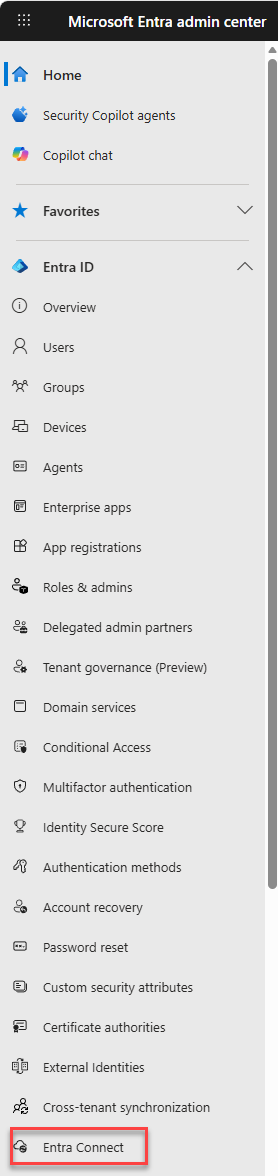
Navigate to the Microsoft Entra Admin Center. Go to Identity > Hybrid management > Entra Connect > Cloud Sync.
Select Configurations, then click New configuration and select EXO to AD attribute sync (Preview).
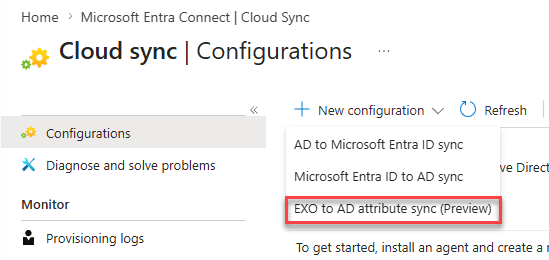 Select EXO to AD attribute sync (Preview)
Step 2: Install the Provisioning Agent (if not already installed)
If the provisioning agent is not yet installed, you’ll be prompted to install it on a member server in your Active Directory domain. You can download it from Entra Connect > Cloud Sync > Agents > Download on-premises agent.
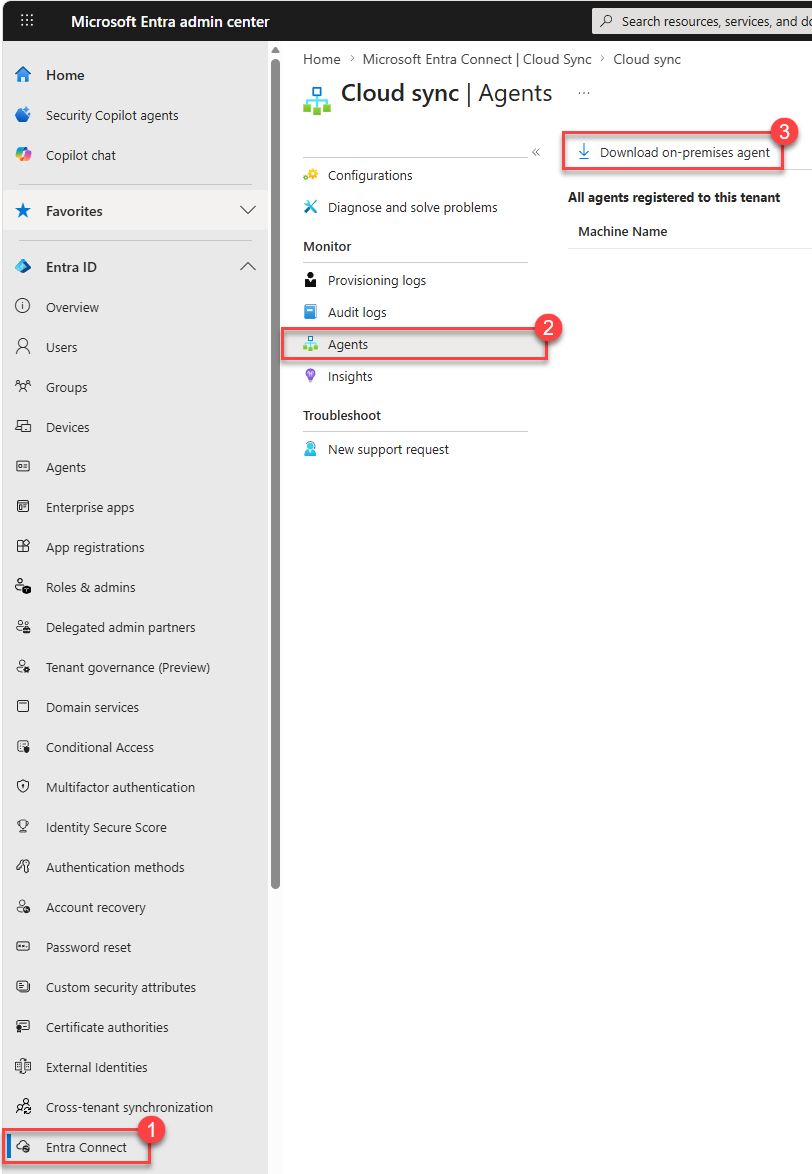 Download and install the on-premises provisioning agent on a member server
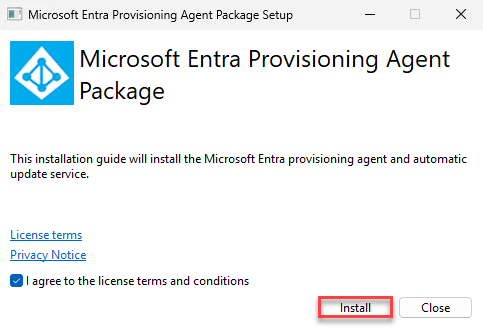 Installation of the provisioning agent on a member server
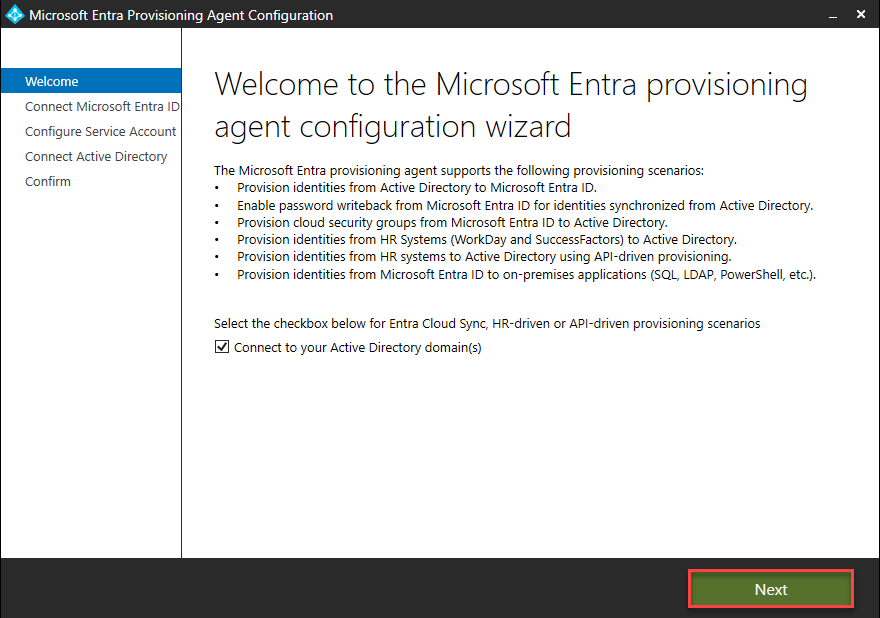 Installation of the provisioning agent on a member server
Step 3: Authenticate and Configure the Agent
During agent installation, authenticate with a user that has the Hybrid Identity Administrator role.
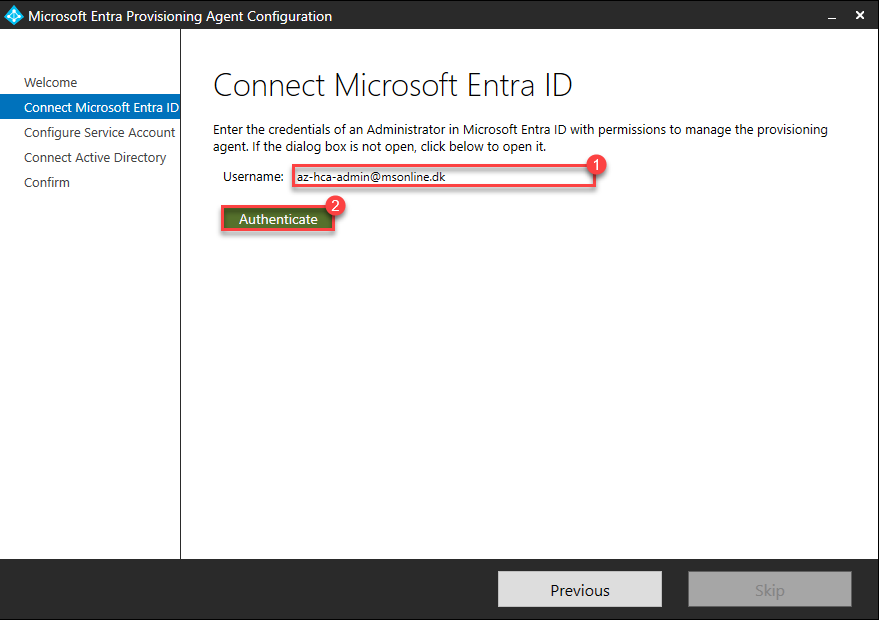
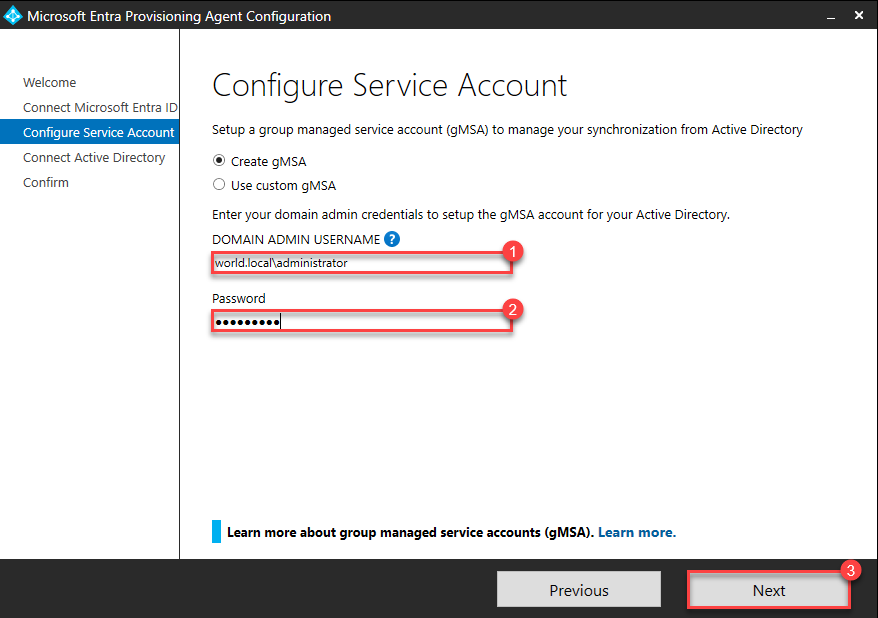
Enter your Domain Administrator credentials to create a Group Managed Service Account (GMSA) for the Entra Provisioning Agent, then click Next.
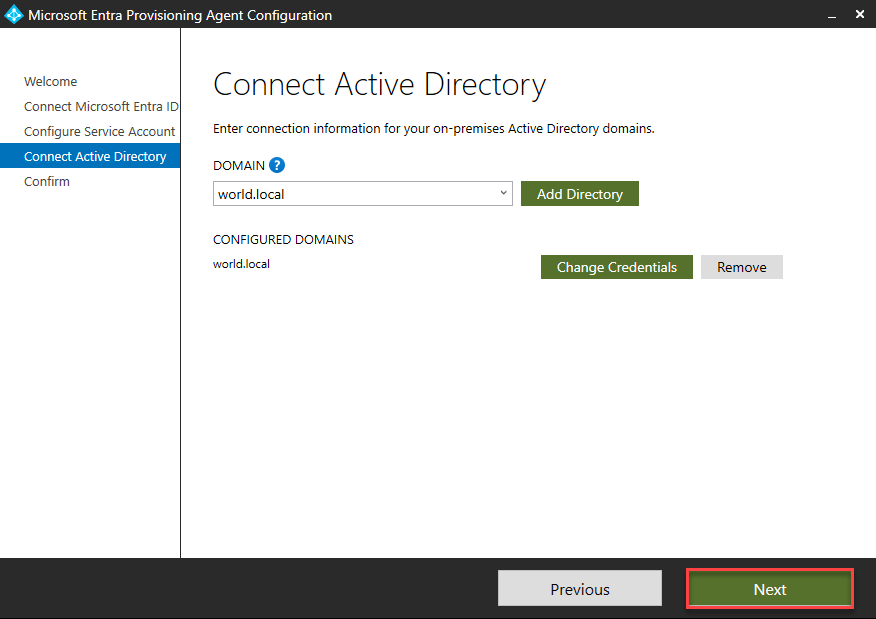
Select your Active Directory domain and click Add Directory.
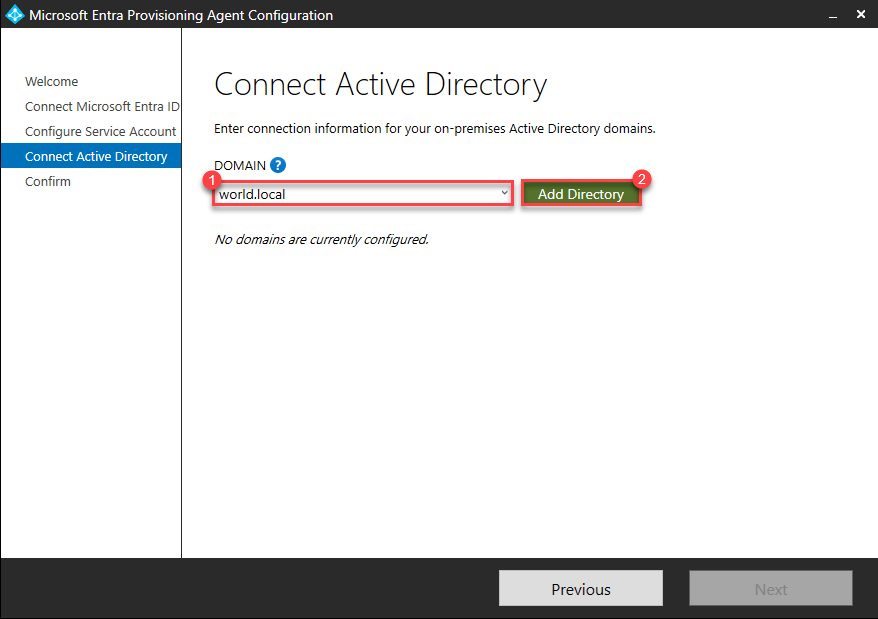
Enter Domain Administrator credentials and click OK, then click Next.
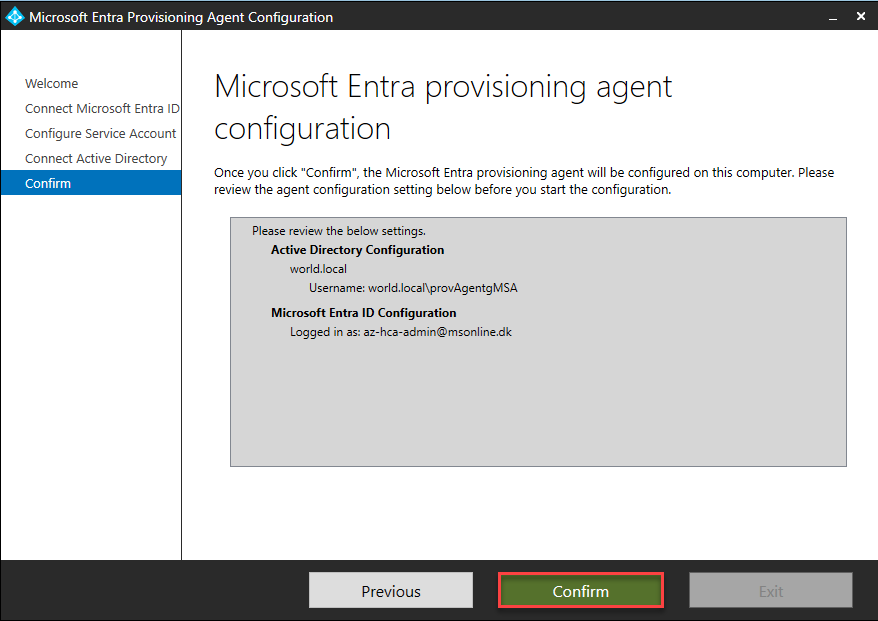
Click Confirm.
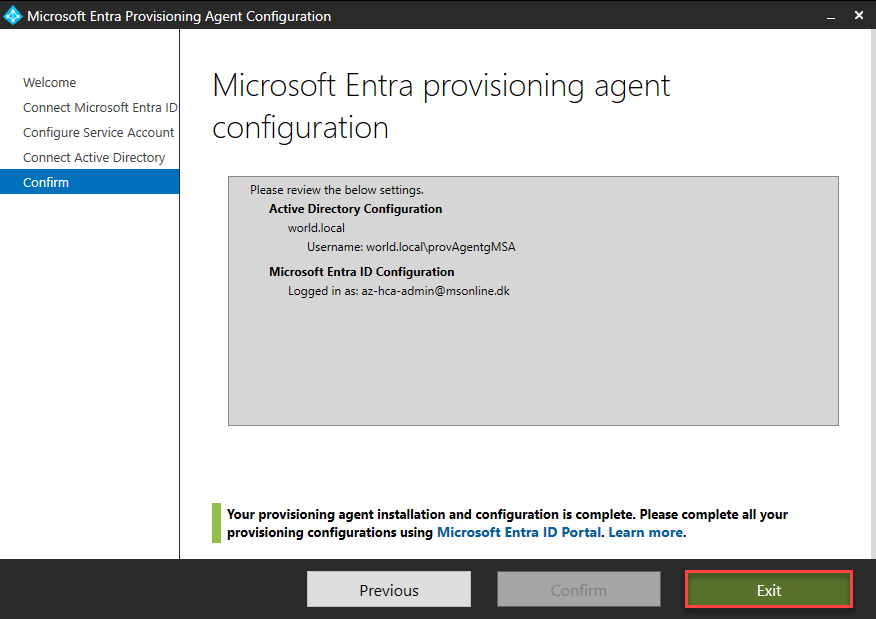
Click Exit once the agent is installed.
Step 4: Create the Configuration and Start Provisioning
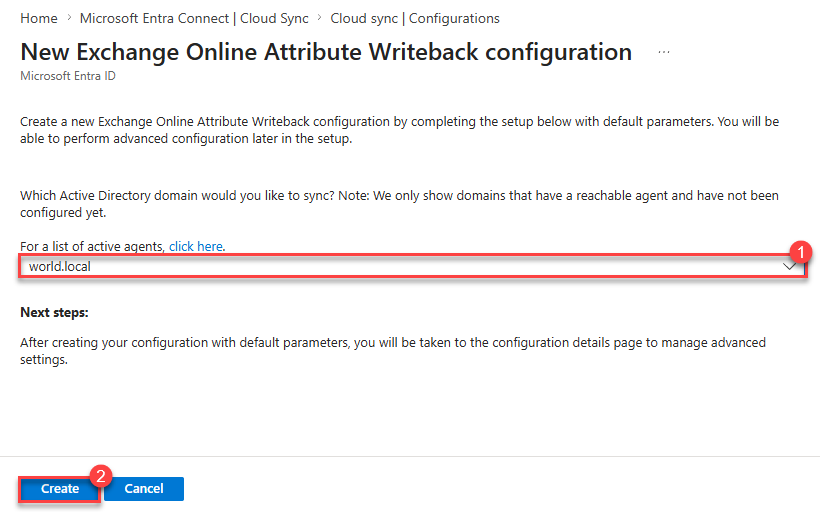
Back in the Entra Admin Center, select the Active Directory domain where you installed the provisioning agent and click Create.
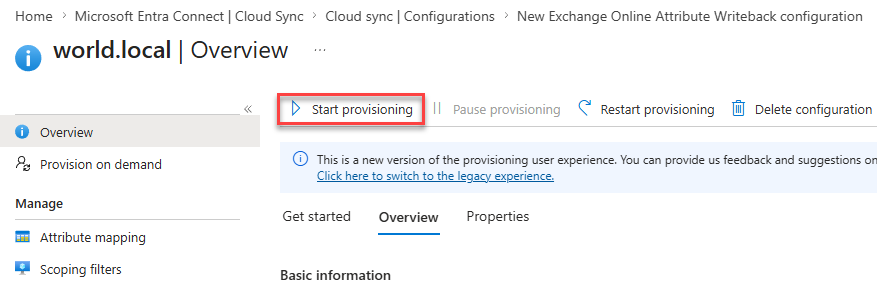
Click Start provisioning to enable the writeback configuration.
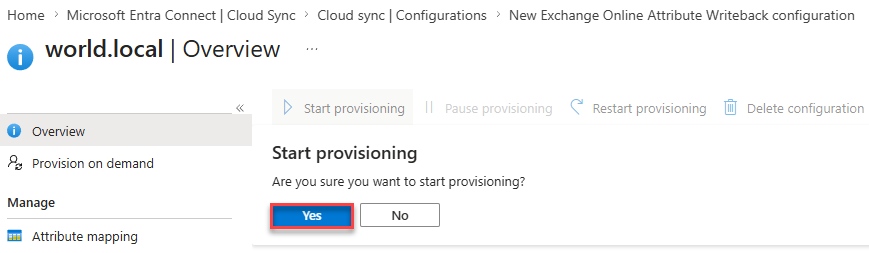
Click Yes to confirm.
Testing: Provision on Demand
Before relying on the scheduled sync cycle, let’s validate writeback works using Provision on demand.
Testing with a Converted User
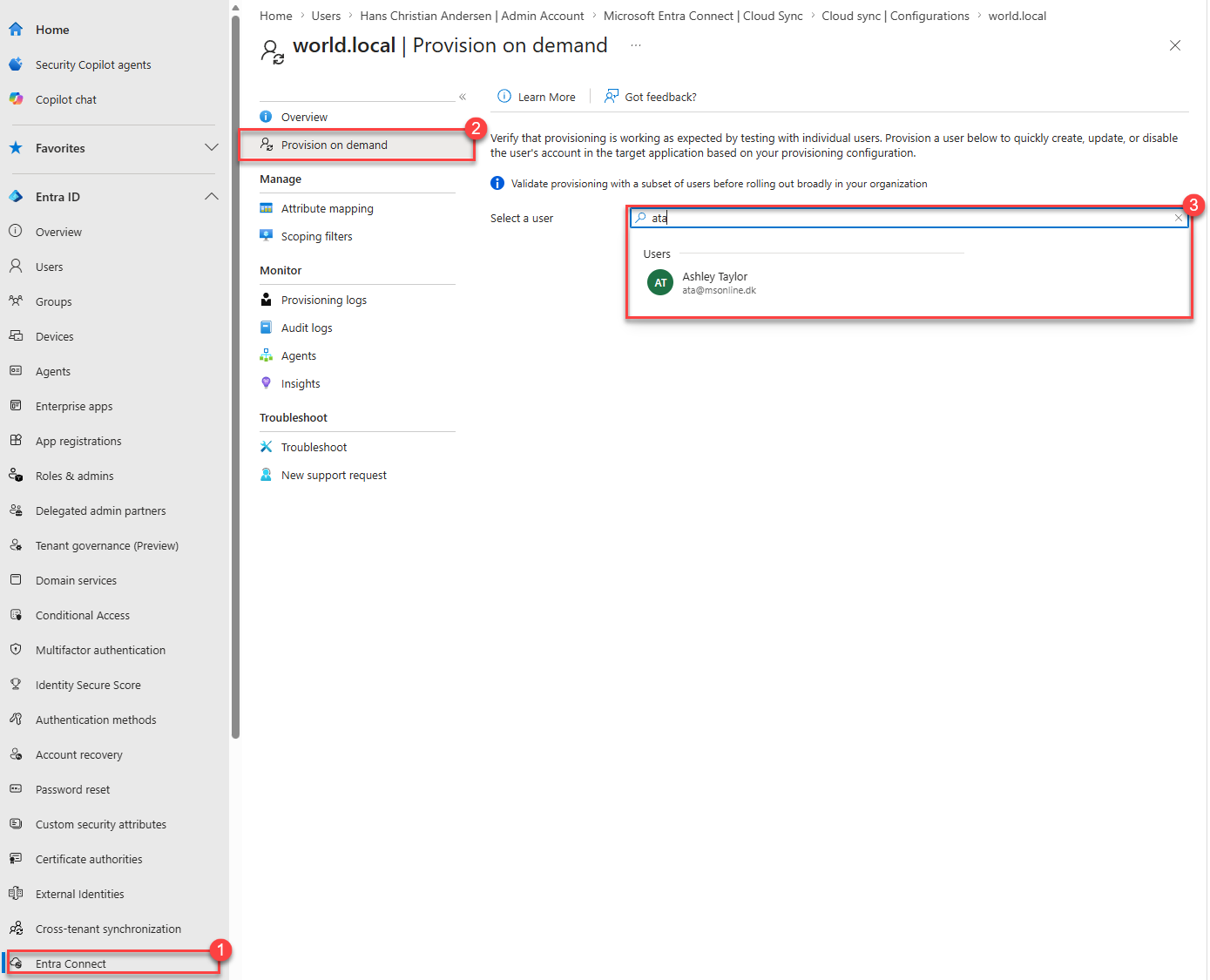
Go to Provision on demand. In this example, we’ll test with Ashley Taylor, the user whose Exchange SOA we transferred to Exchange Online in Part I.
Select Ashley Taylor and click Provision.
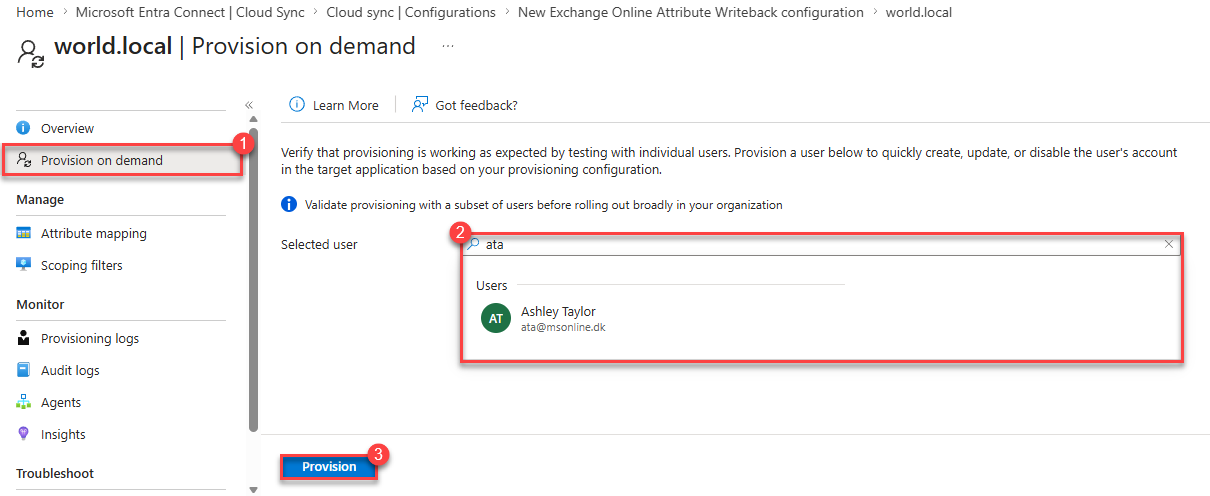
The result shows that the user is successfully matched between Exchange Online and on-premises AD.
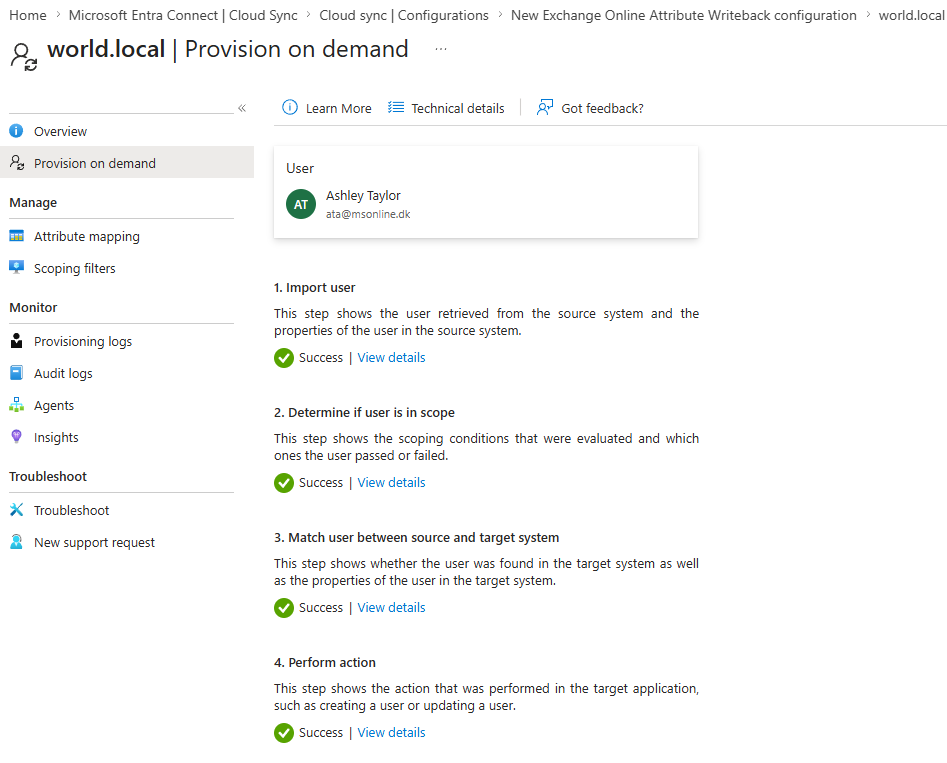 User is matched between Exchange Online and on-premises AD
What Happens with a User That Hasn’t Been Converted?
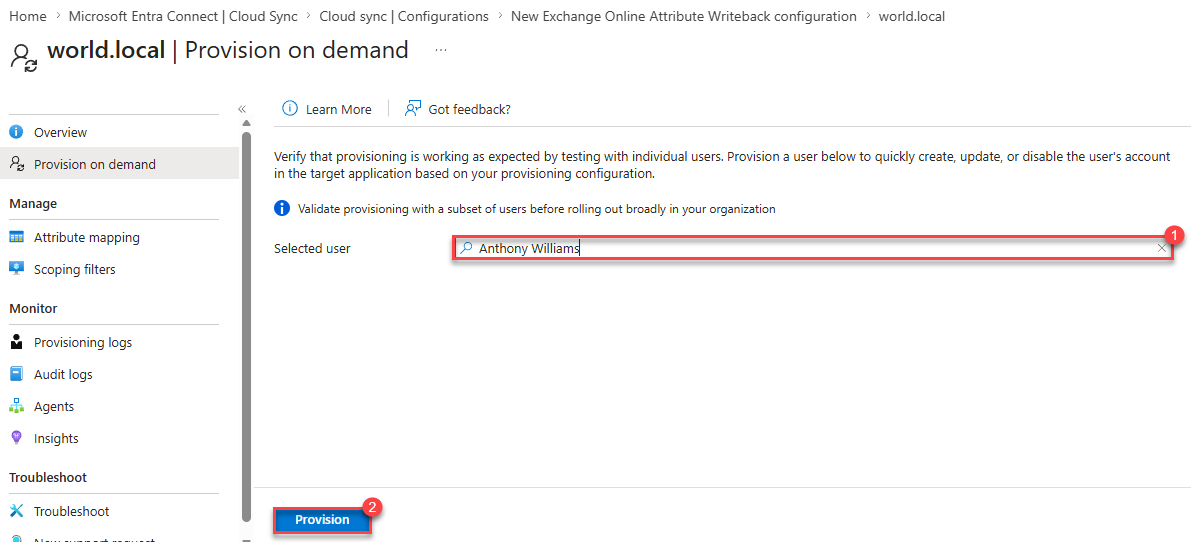
Let’s try provisioning a user that hasn’t had their Exchange SOA moved to Exchange Online. In this example, we select Anthony Williams and click Provision.
The result shows a SkipReason of NotInScope.
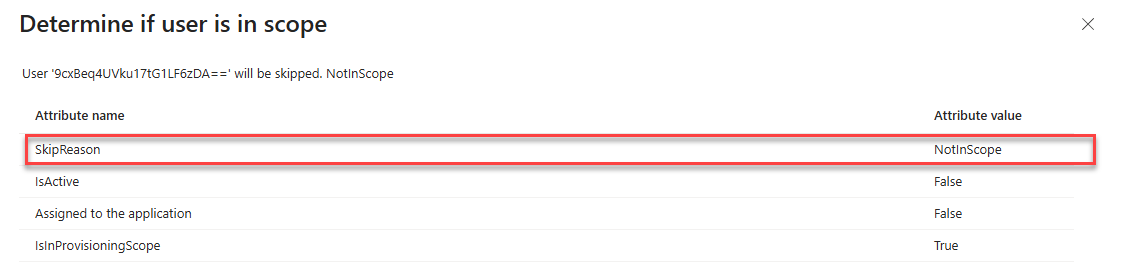 Users without Exchange SOA conversion are skipped — writeback only applies to cloud-managed mailboxes
This confirms that writeback is scoped only to mailboxes that have gone through the Exchange SOA conversion. You can identify all users with SOA converted to Exchange Online using the Exchange SOA Conversion Tool.
The Real Test: Adding a Mail Alias and Watching It Write Back
Now let’s test the full end-to-end flow. We’ll add a new mail alias to Ashley Taylor in Exchange Online and verify it appears in on-premises Active Directory/Exchange.
Before: The On-Premises View
First, let’s look at Ashley Taylor’s mail addresses in the on-premises Exchange admin center before we make any changes.
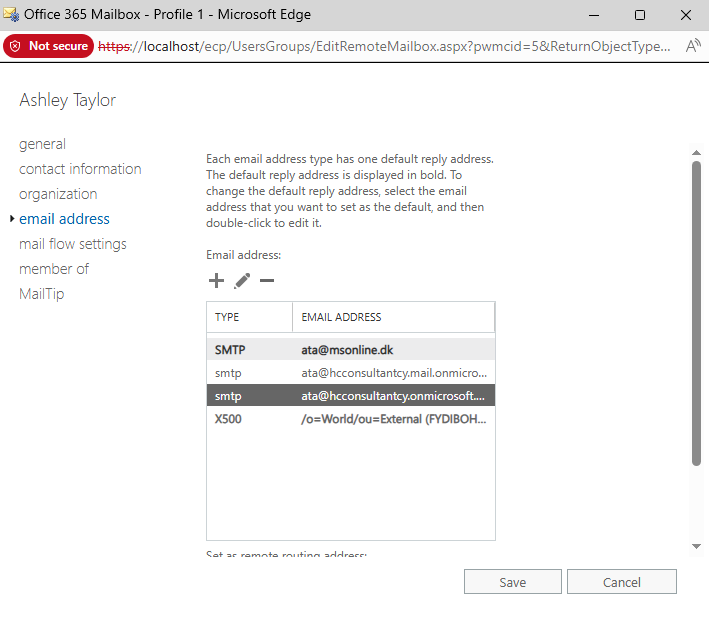 Ashley Taylor’s mail addresses in on-premises Exchange before adding a new alias
Add a New Alias in Exchange Online
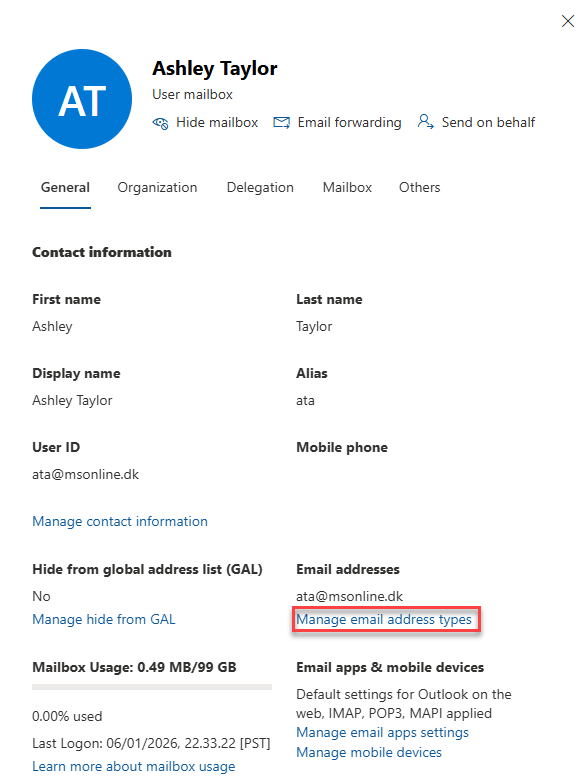
Go to the Exchange Online Admin Center. Navigate to Mailboxes and click on Ashley Taylor.
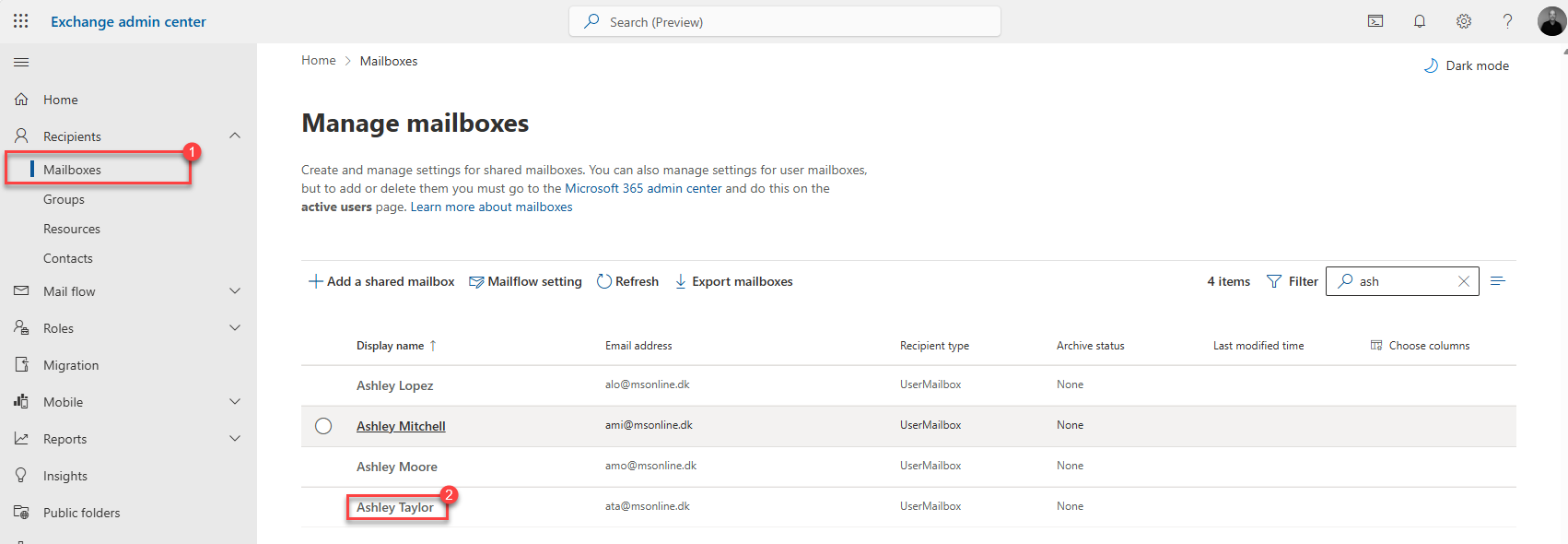
Select Manage email address types.
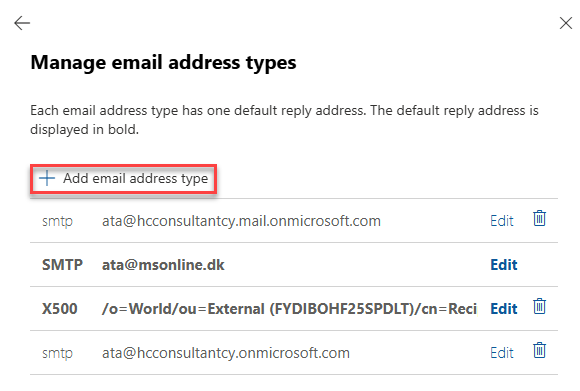
Click Add email address type.
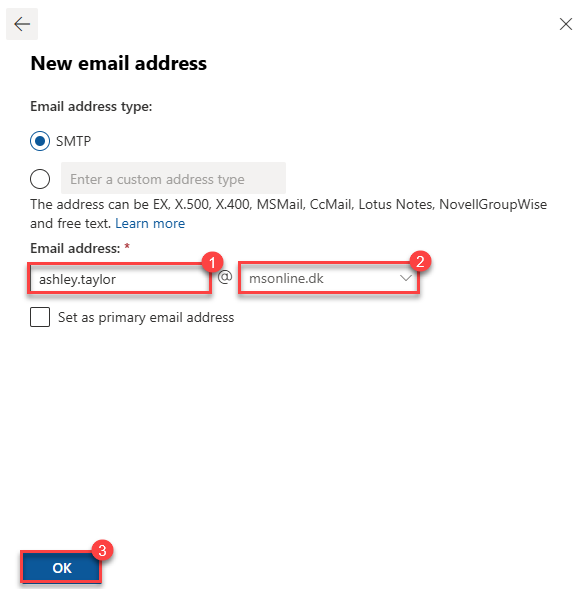
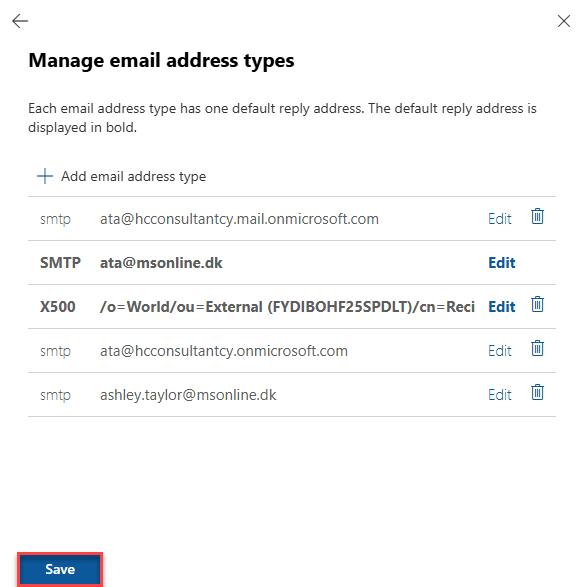
Enter the new mail alias and click OK, then click Save.
Trigger Writeback via Provision on Demand
Go back to Cloud Sync > Provision on demand. Select Ashley Taylor and click Provision.
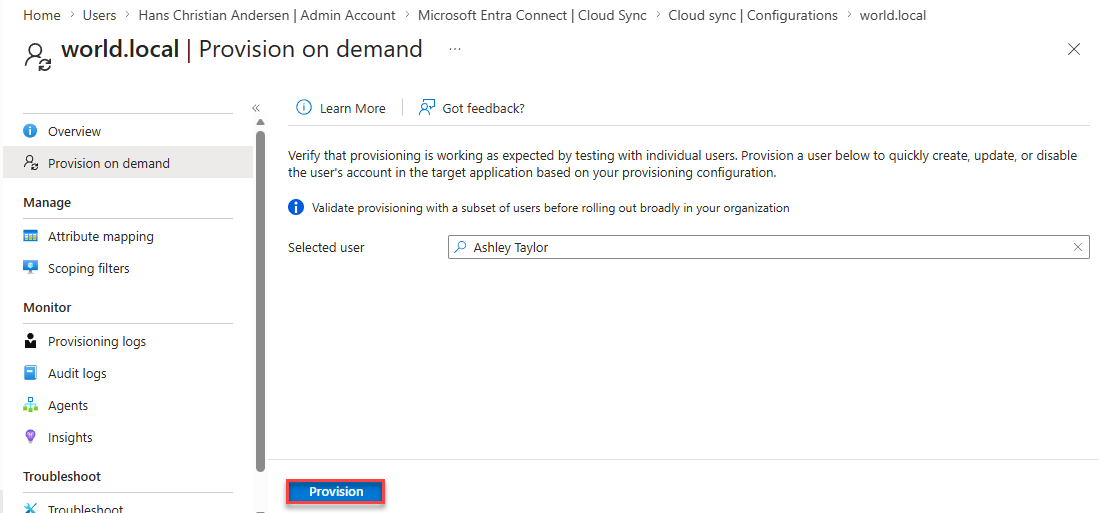
Under Modified target attributes, you can see the new mail alias is included in the writeback payload.
 The new mail alias appears in the modified attributes being written back to AD
After: Verify in On-Premises Exchange
Back in the on-premises Exchange admin center, we can now see Ashley Taylor’s mail addresses reflect the new alias that was added in Exchange Online.
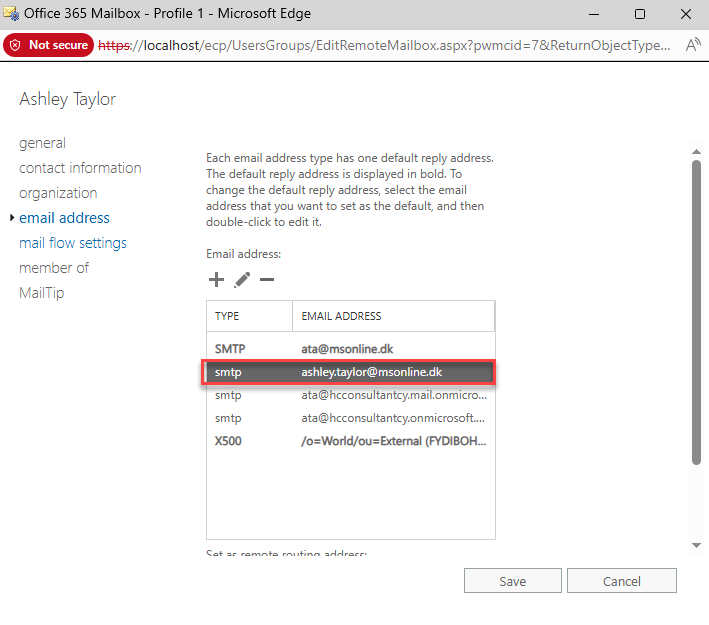 The new mail alias has been written back from Exchange Online to on-premises Active Directory
It worked. The change made in Exchange Online has been automatically synchronized back to on-premises Active Directory/Exchange without touching the on-premises Exchange server.
What You’ve Gained
By enabling Exchange Writeback, you’ve completed the management loop:
- Make changes in the cloud: Manage all Exchange attributes directly from Exchange Online
- On-premises stays in sync: Active Directory is automatically updated via Cloud Sync writeback
- No manual reconciliation: No scripts, no manual AD attribute updates
- Dependent systems stay current: On-premises apps reading Exchange attributes from Active Directory see up-to-date values
- One step closer to decommissioning: Reduce the need to ever touch on-premises Exchange again
What’s Next?
The Active Directory Minimization series continues. We’ve covered:
- Part I: Exchange SOA Conversion — Move Exchange attribute management to the cloud
- Part II: Group SOA Conversion — Move group management to Entra ID
- Part III: Exchange Writeback — Close the loop with automatic writeback to on-premises AD
Next in the series: AD Minimization Part IV: User Writeback — provisioning cloud-native users to on-premises Active Directory with Entra Cloud Sync.
Try It Yourself
- Exchange SOA Conversion Tool — Convert mailboxes to cloud management (required before writeback)
- Microsoft: Writeback for Cloud-Managed Remote Mailboxes (Public Preview)
Let’s Connect
I’m always looking to connect with others who are working on AD Minimization and related challenges. Whether you’re just starting your cloud journey or deep into decommissioning on-prem infrastructure, I’d love to exchange ideas and experiences.
If you’re working on Active Directory minimization, hybrid Exchange management, or cloud-native transitions, let’s talk. I learn just as much from hearing about your environment as you might from this post.
You can find me on Twitter/X and LinkedIn, or open an issue on GitHub if you have feedback on the tool.
Reference
- Microsoft: Writeback for Cloud-Managed Remote Mailboxes — Public Preview announcement
- Microsoft: What is Entra Cloud Sync?
- AD Minimization Part I: Exchange SOA Conversion
- AD Minimization Part II: Group SOA Conversion
- AD Minimization Part IV: User Writeback
This is part of an ongoing series about Active Directory Minimization. I’ll be creating more tools and blog posts about this subject.