AD Minimization Part I: Exchange SOA Conversion - From Locked Attributes to Cloud Management
This is Part I of the Active Directory Minimization series.
This blog post is a part of a series on Active Directory Minimization and specific Exchange on-premises minimization. Here, I’ll walk through the Exchange SOA Conversion Tool and how to use it to convert a mailbox to cloud management.
A few weeks ago, I released the Exchange SOA Conversion Tool. Today, I want to walk you through how to use the tool in a real-world scenario: Converting a mailbox to cloud management so you can finally manage Exchange attributes without touching your on-premises Exchange server.
The Problem: “This attribute is controlled by your on-premises Active Directory”
Let’s try to change a user’s email address in the Exchange Online Admin Center and see what happens:
Go to https://admin.cloud.microsoft/exchange#/mailboxes and find a user. In this example, I’ll use the user “Ashley Taylor” and choose “Manage email address types”.
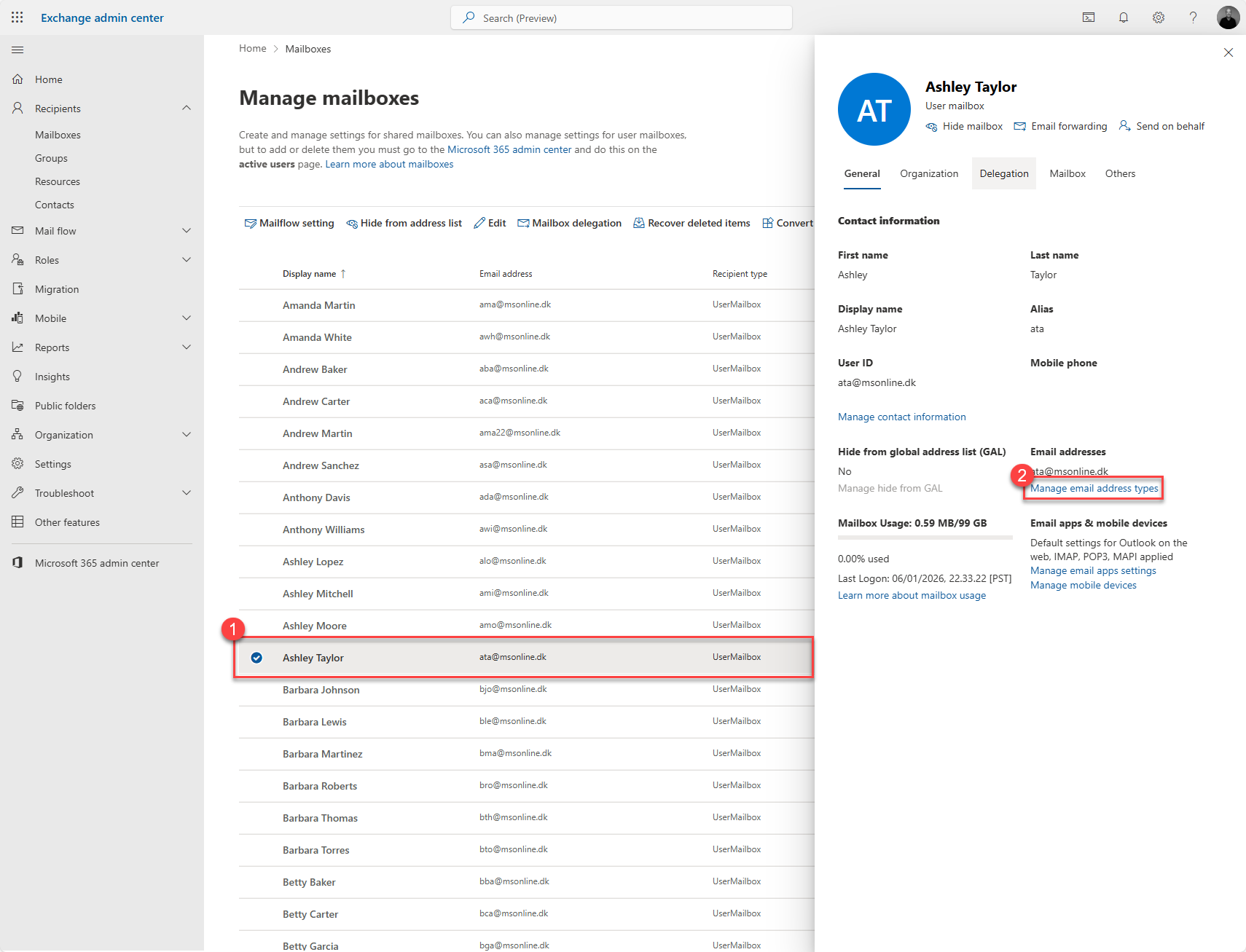 Exchange Online Admin Center
Click on Edit and try to change the email address from ata to Ashley.Taylor@msonline.dk and click OK and then Save.
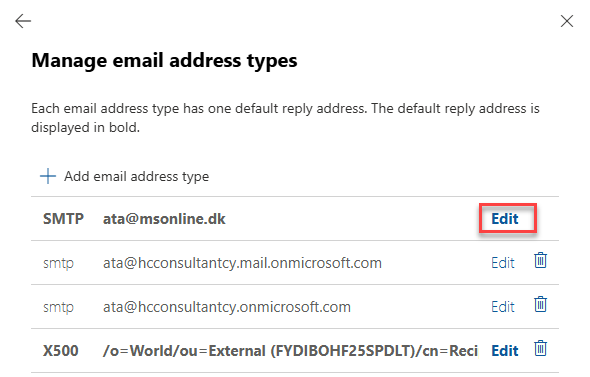
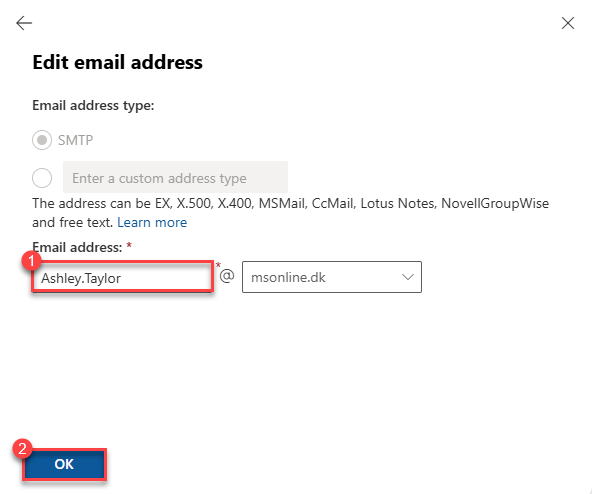
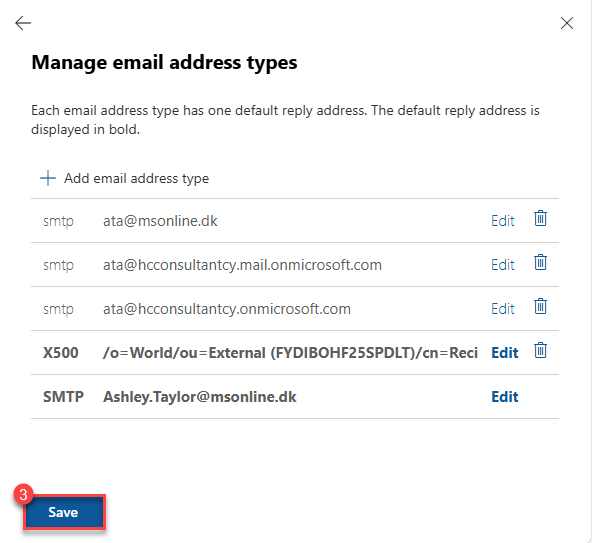 Exchange Online Admin Center
You will get the following error: 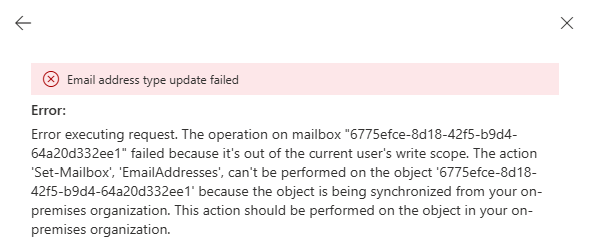 The error: Error executing request. The operation on mailbox “6775efce-8d18-42f5-b9d4-64a20d332ee1” failed because it’s out of the current user’s write scope. The action ‘Set-Mailbox’, ‘EmailAddresses’, can’t be performed on the object ‘6775efce-8d18-42f5-b9d4-64a20d332ee1’ because the object is being synchronized from your on-premises organization. This action should be performed on the object in your on-premises organization.
This happens in hybrid environments where the mailbox’s source of authority is still on-premises, even though the mailbox itself lives in Exchange Online. Every Exchange attribute change must go through your on-prem Exchange server.
Why This Matters: The Benefits of Cloud-Managed Exchange Attributes
Before we dive into the solution, let’s talk about why you’d want to fix this:
Reduce infrastructure costs
- Scale down or completely retire on-premises Exchange servers
- Lower licensing, hardware, and maintenance expenses
Improve security posture
- Manage attributes with modern authentication, MFA, and Conditional Access
- No more management via on-premises Exchange servers for routine changes
- Reduce your on-premises attack surface
Cleaner architecture
- Eliminate unnecessary hybrid complexity
- Simplify your environment and documentation
- Easier troubleshooting with fewer moving parts
Enable decommissioning
- Critical step toward removing your last Exchange server
- Move closer to cloud-only operations
Prerequisites: Getting Ready
Before we start, you’ll need:
- Exchange Administrator role (Recommended), Hybrid Identity Administrator role, or Global Administrator role
- Hybrid Exchange environment with Entra ID directory sync enabled
- PowerShell 5.1 or later
- The Exchange SOA Conversion Tool - Download from GitHub
- Entra Connect Sync Version 2.5.190.0 or later
- Entra Cloud Sync supported since 23rd January 2026
The tool will automatically install the ExchangeOnlineManagement module if you don’t have it already.
The Conversion: Flipping the Switch to Cloud Management
Let’s convert Ashley Taylor’s Exchange attributes to cloud-managed source of authority.
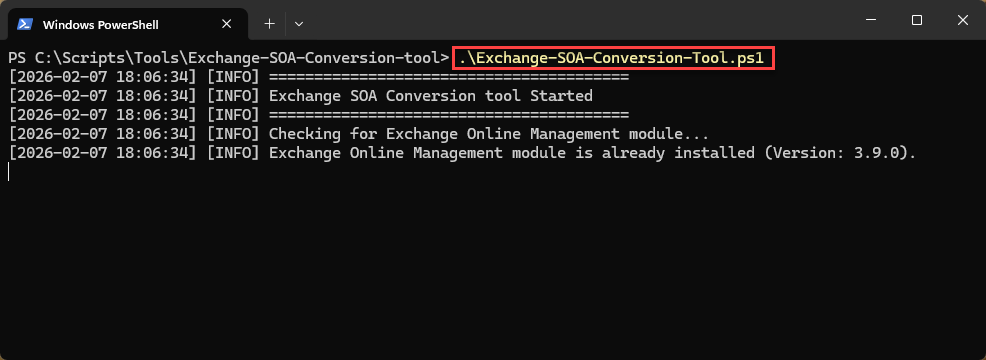
Step 1: Launch the Tool
Navigate to where you downloaded the tool and run:
1
.\Exchange-SOA-Conversion-Tool.ps1
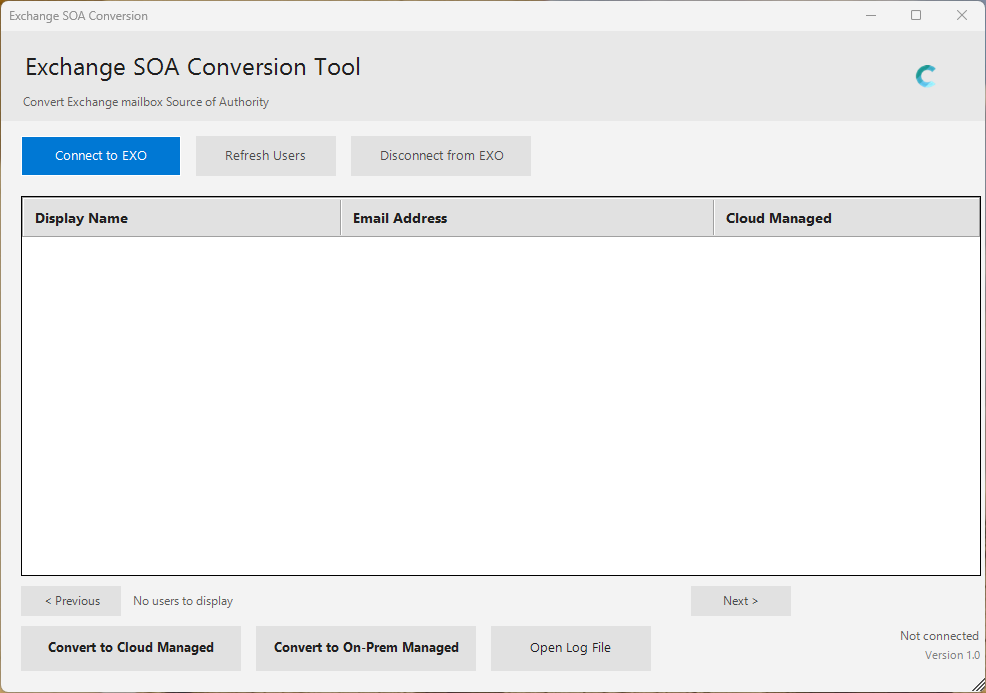
Step 2: Connect to Exchange Online
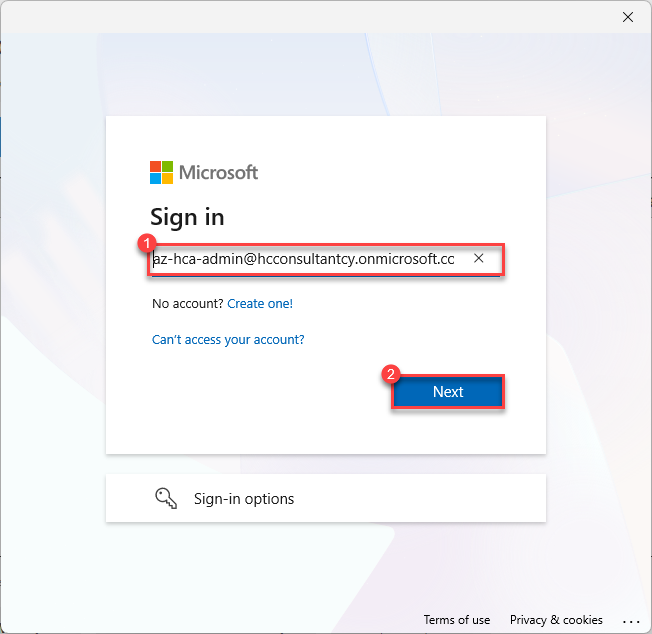
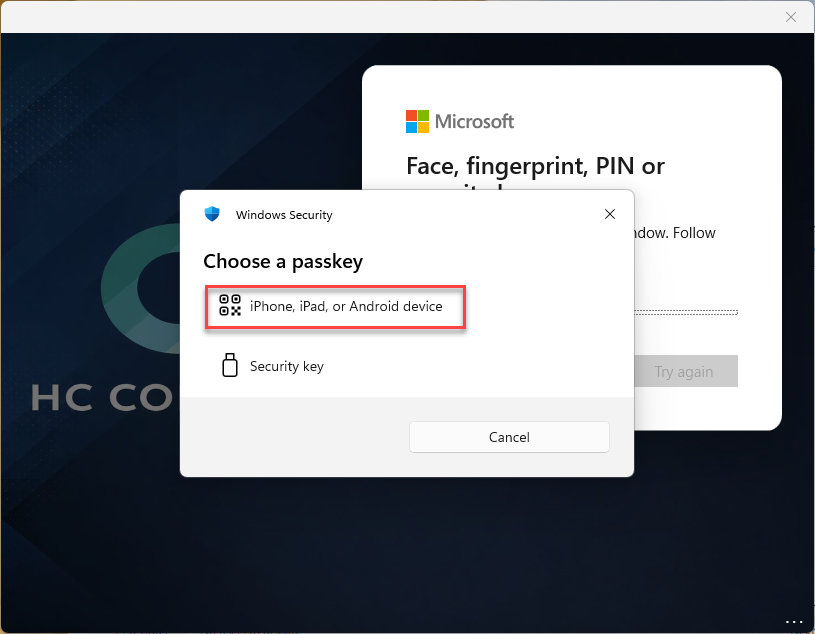
Click “Connect to EXO” and sign in with your Exchange Online admin credentials. The tool uses modern authentication, so you’ll go through your organization’s authentication flow (including MFA if enabled).
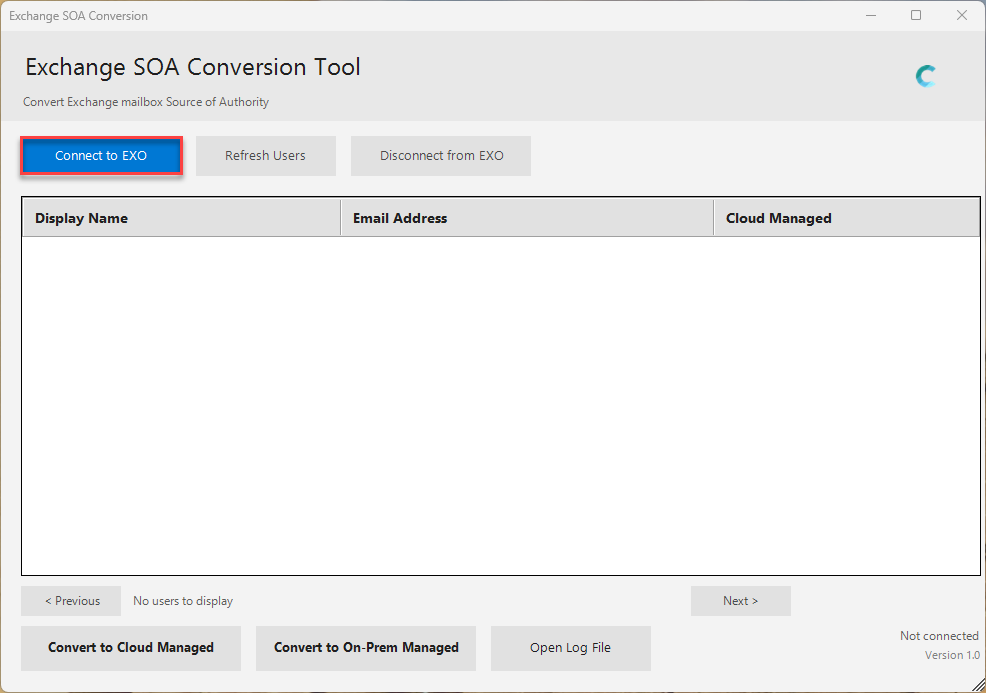
After connection, the tool automatically loads only directory-synced mailboxes (IsDirSynced = True) - these are the ones that need conversion. 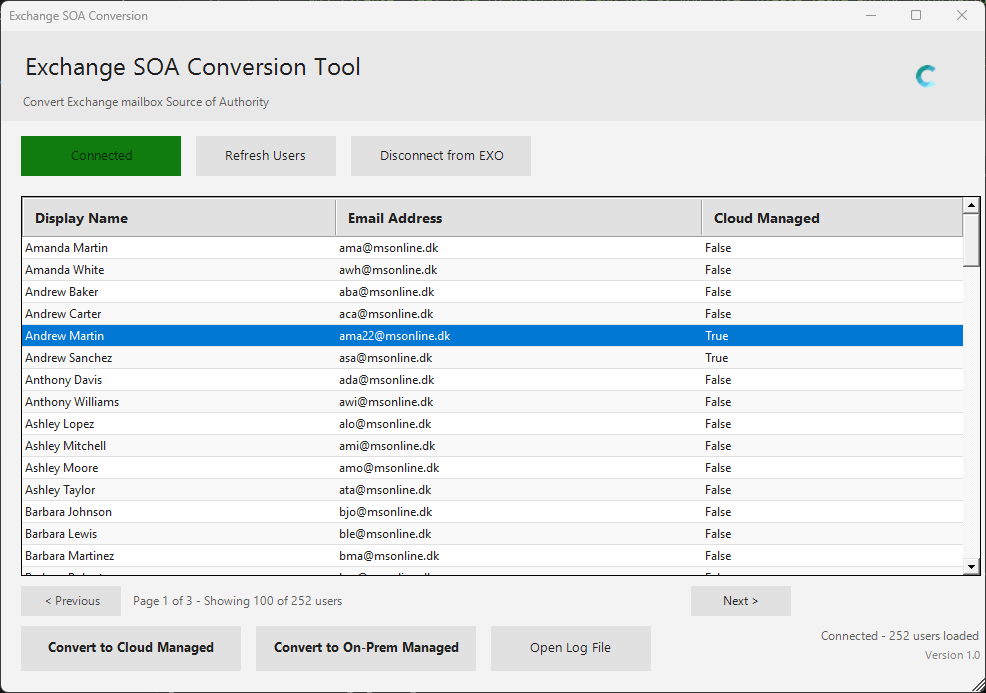 Connected status showing directory-synced mailboxes
Step 3: Select and Convert
Find the user Ashley Taylor (You can select more users to convert at once), click “Convert to Cloud Managed”.
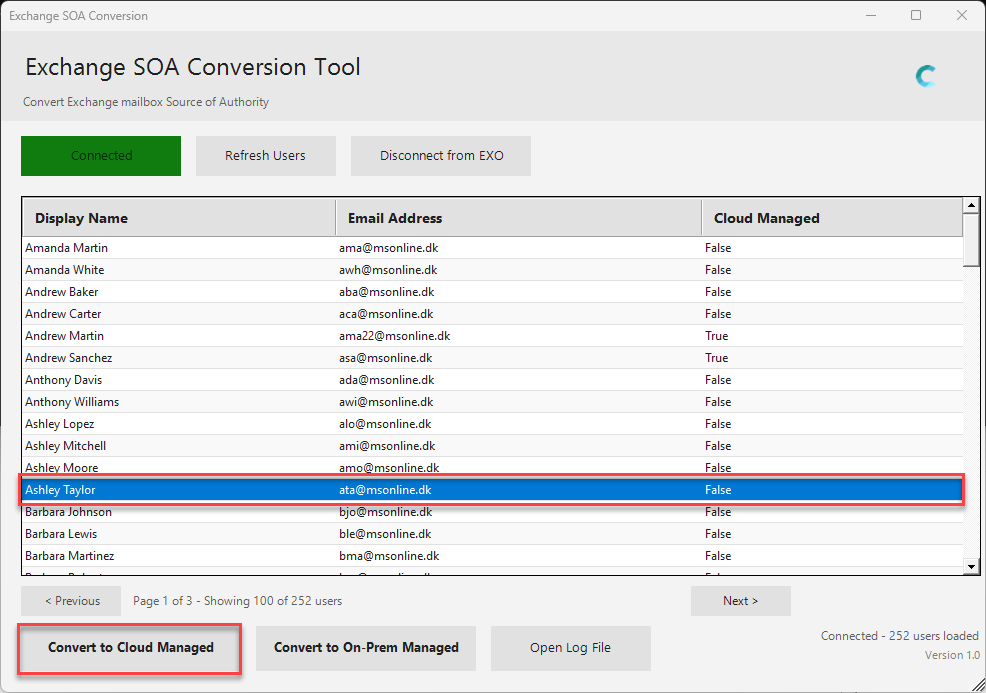 Selecting user Ashley Taylor for cloud management conversion
Select Yes to confirm when prompted and OK to close the confirmation dialog. 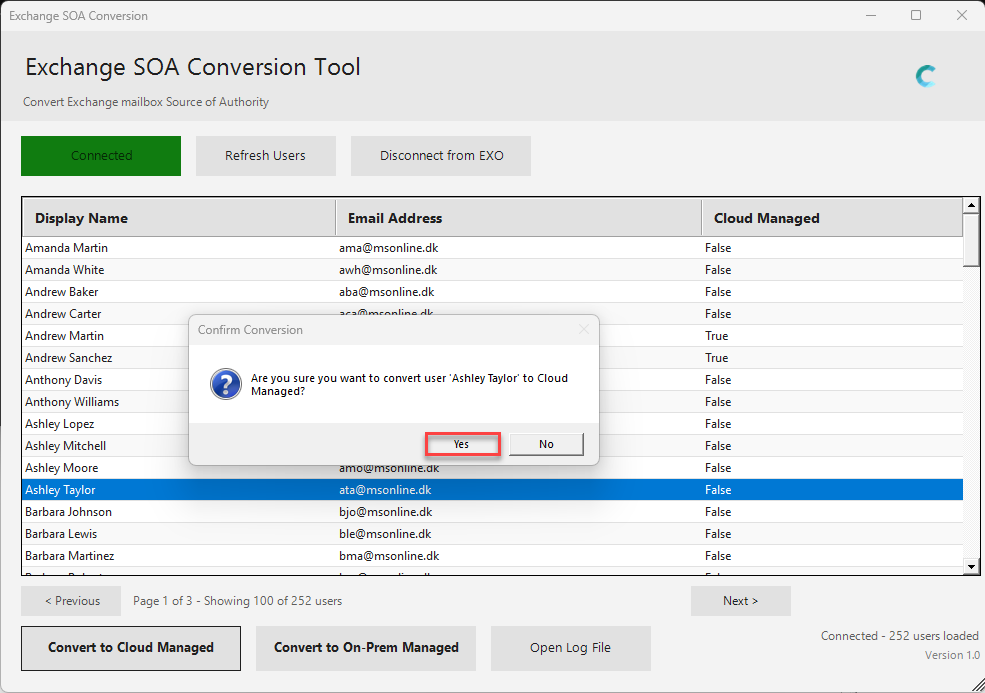
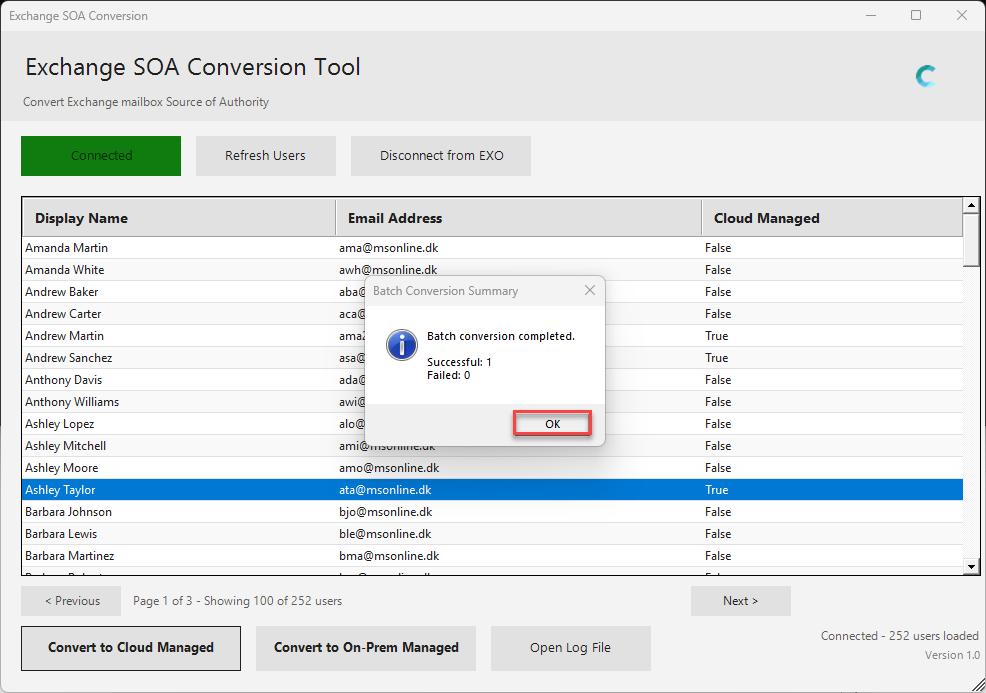 Success message and log entry
You can now see the user has the Cloud Managed value set to True. This means the mailbox attributes are now managed in the cloud. 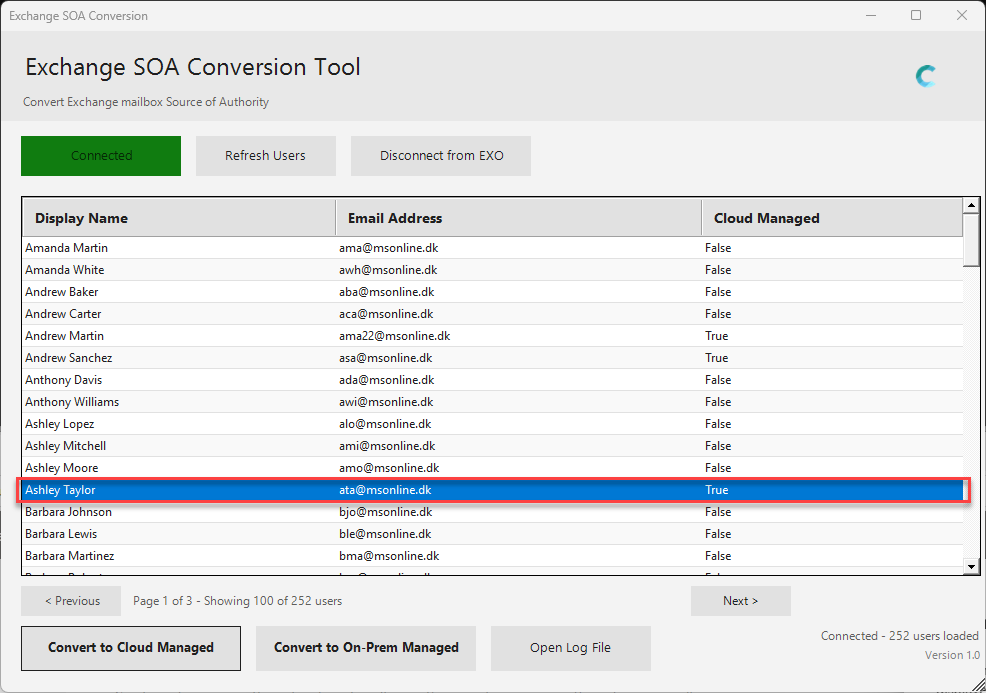
Behind the scenes, the tool is setting the IsExchangeCloudManaged attribute to $true. This tells Exchange Online that it now has authority over this mailbox’s Exchange attributes.
What Just Happened?
The user object itself is still syncing from on-premises Active Directory via Entra Cloud Sync. That hasn’t changed.
What has changed is that Exchange-specific attributes are now managed in the cloud. This includes:
- Proxy addresses (email aliases)
- Extension attributes (ExtensionAttribute1-15)
- Mail settings (mail, altRecipient, etc.)
- Mailbox properties managed by Exchange
For a complete list, see the Microsoft documentation.
Success: Full Control in Exchange Online
Now, let’s go back to Exchange Online Admin Center and try changing that email address again.
Go to https://admin.cloud.microsoft/exchange#/mailboxes. I’ll select the user “Ashley Taylor” and choose “Manage email address types”.
Select Edit
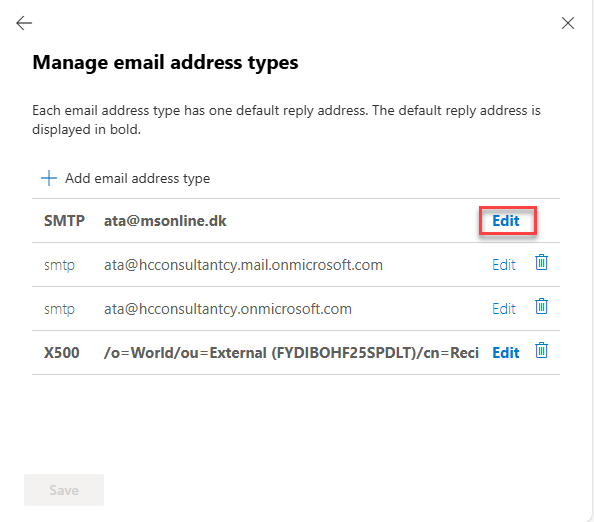
Change the email address, select OK, and then select Save.
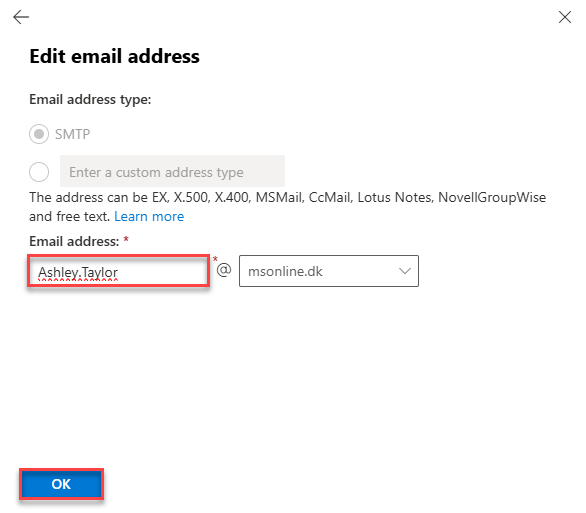
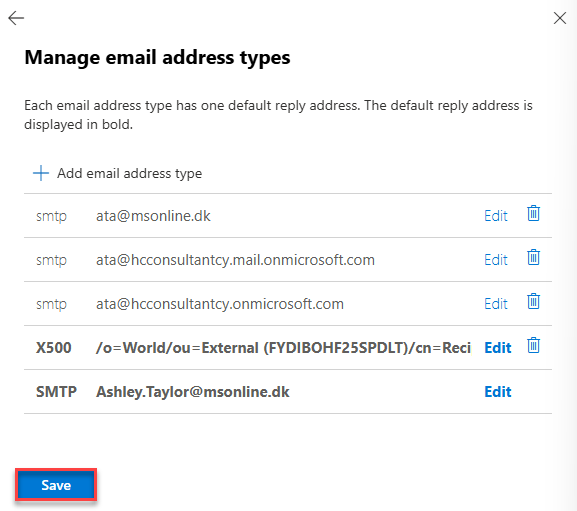
 No more error message - the change saves successfully
It worked, which means that changes to Exchange Online attributes can now be made directly in Exchange Online without needing to modify the on-premises Active Directory object.
We can see in the Exchange Online Admin Center that the user has the new email address Ashley.Taylor@msonline.dk 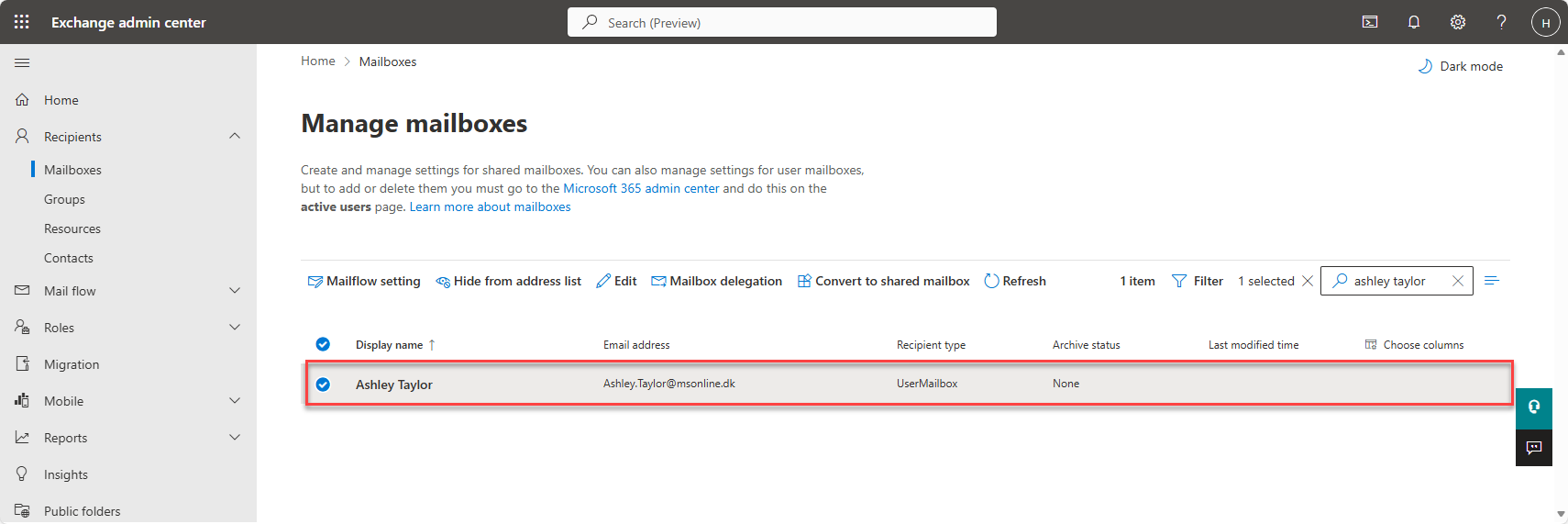
What You Can Manage Now
With the mailbox cloud-managed, you can directly edit:
- Email addresses and aliases - Add, remove, or modify proxy addresses
- Extension attributes - All 15 extension attributes for custom data
- Mailbox settings - Forwarding, delegation, and other mailbox properties
All directly from Exchange Online PowerShell or the Exchange Admin Center.
What happens in Entra ID Connect Sync
Now that we’ve converted to cloud management, what safeguards exist if someone still makes changes on-premises? Let’s test it.
Log on to Microsoft Exchange admin center on-premises. Select the user “Ashley Taylor” and select to edit the user.
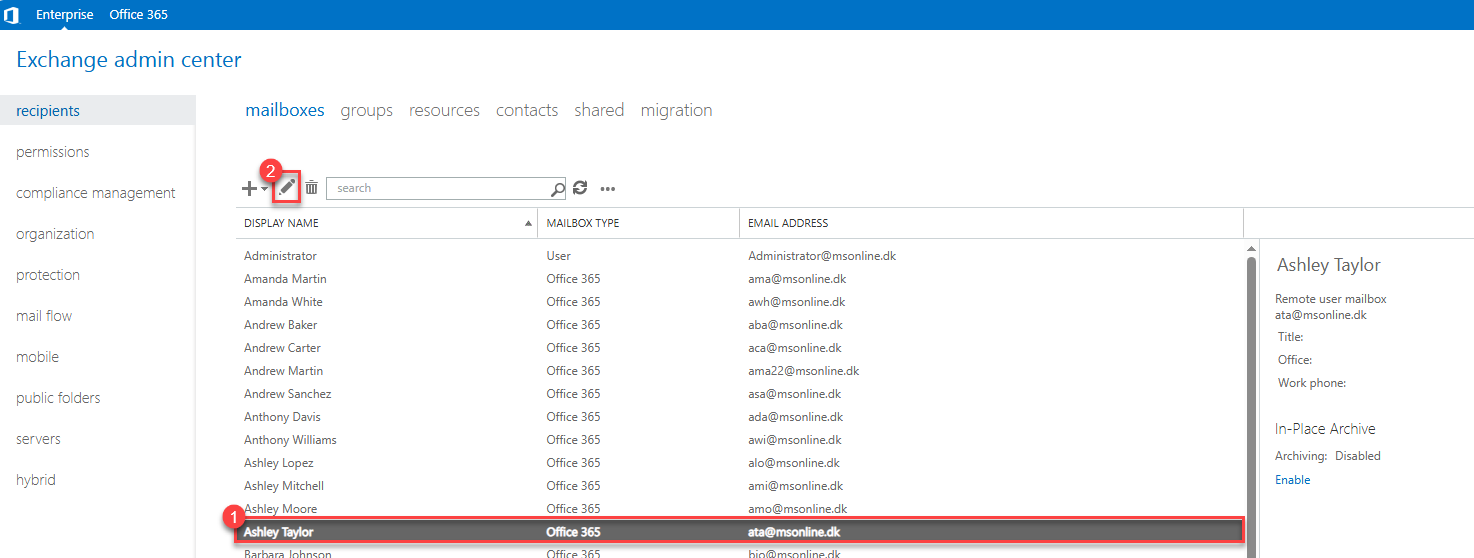
Select email addresses, then the primary SMTP address, and select the edit button.
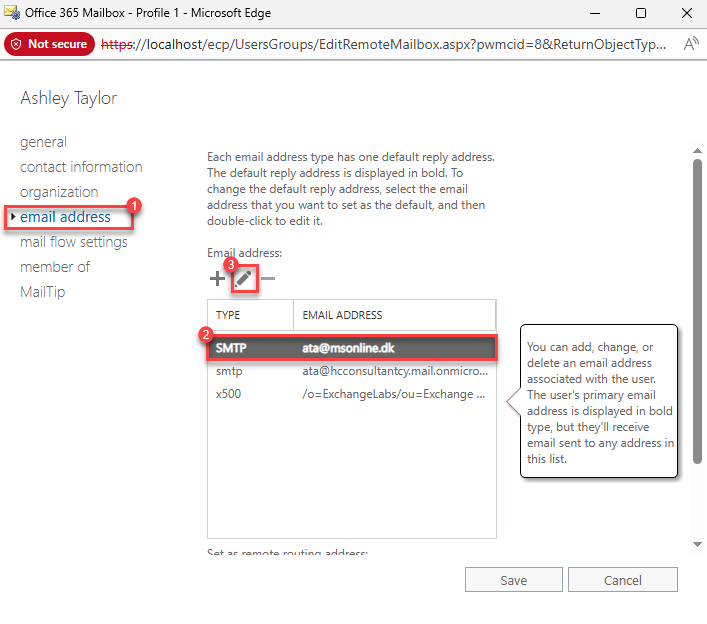
We now try to change the email address from ata@msonline.dk to Ashley.Taylor1@contoso.com and select OK and then Save.
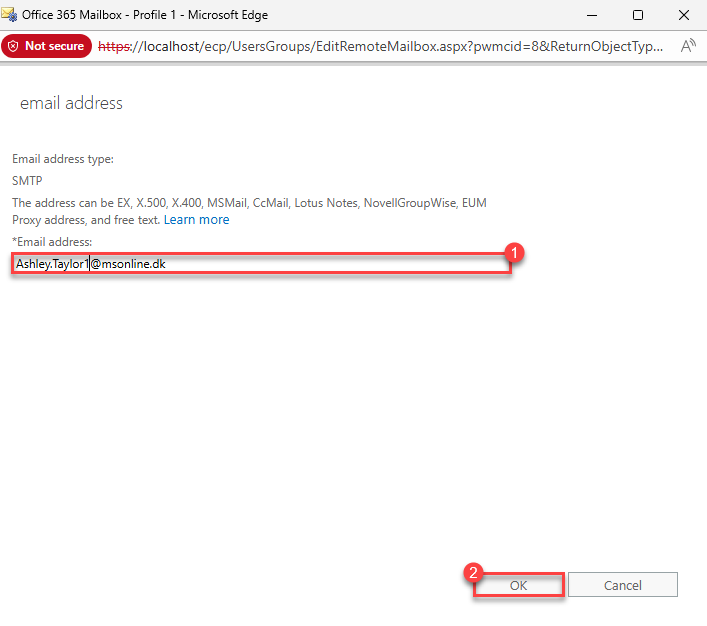
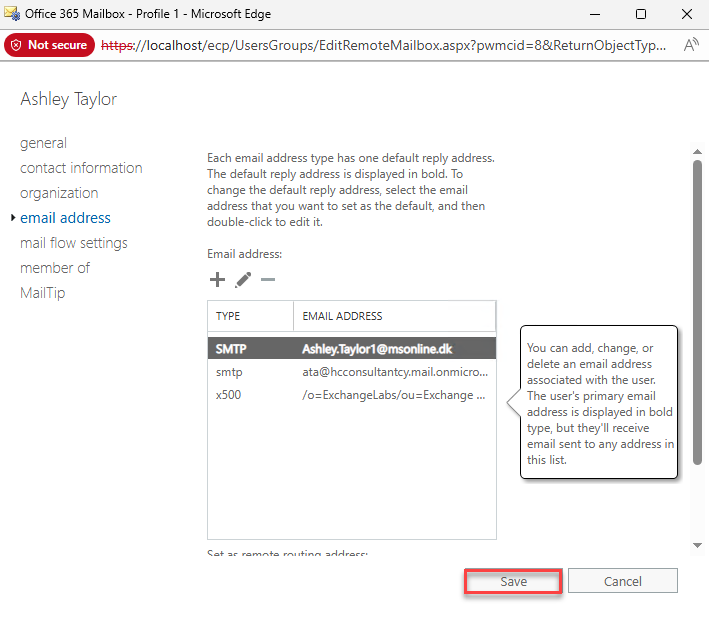
In Entra ID Connect Sync, the change is detected and blocked from synchronizing the email address change to the Exchange Online when the attribute blockExchangeAttributesOnPremisesSync is set to true. 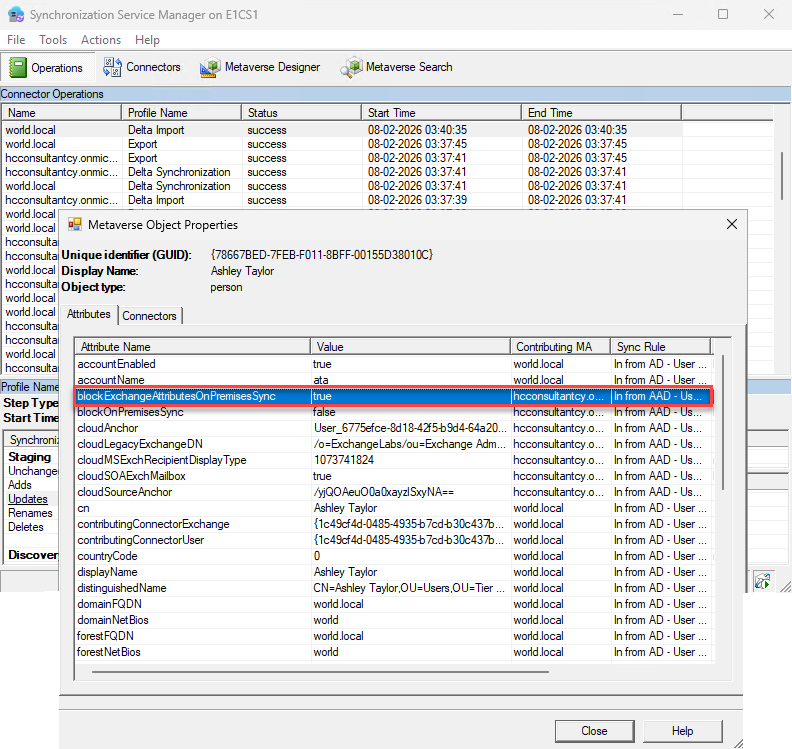 Attribute
 blockExchangeAttributesOnPremisesSync blocks the change to Exchange Online
What You’ve Gained
By converting mailboxes to cloud management, you’ve:
- Eliminated dependency on on-premises Exchange for routine mailbox administration
- Simplified your hybrid architecture
- Improved security by reducing on-premises access requirements
- Enabled yourself to eventually decommission on-premises Exchange servers
This is one piece of the puzzle on the path to minimizing or eliminating your on-premises Exchange footprint.
What’s Next?
This walkthrough focused on a single user and email address changes, but the same approach works for:
- Bulk conversions (the tool supports multi-select)
- Managing shared mailboxes
Next in the series: Active Directory Minimization Part II, where I’ll be covering the move of Group Source of Authority from on-premises to the cloud. Stay tuned!
Try It Yourself
The Exchange SOA Conversion Tool is free and available on GitHub: https://github.com/codeandersen/Exchange-SOA-Conversion-tool
Let’s Connect
I’m always looking to connect with others who are working on AD Minimization and related challenges. Whether you’re just starting your cloud journey or deep into decommissioning on-prem infrastructure, I’d love to exchange ideas and experiences.
If you’re working on Active Directory minimization, hybrid Exchange management, or cloud-native transitions, let’s talk. I learn just as much from hearing about your environment as you might from this post.
You can find me on Twitter/X and LinkedIn, or open an issue on GitHub if you have feedback on the tool.
Reference
- Microsoft: Enable Exchange attributes cloud management
- Exchange SOA Conversion Tool - Teaser
- Exchange SOA Conversion Tool - Now Available
This is part of an ongoing series about Active Directory Minimization. I’ll be creating more tools and blog posts about this subject.